QBoard

How it works

How to use QBoard

A step-by-step guide for hosts, from signing up to running the Q&A and reviewing questions afterwards. Attendees just scan the QR code their host shares — nothing else to do.

Before the event

Setup takes five minutes

STEP 01

Create a free account

Enter your email and a password, then click the button in the confirmation email. Only hosts need an account — attendees never sign up.

  • Free to sign up, no monthly fee
  • The confirmation email comes from noreply@studiometa.tech
STEP 02

Create an event

Click “New event” on your dashboard and give it a name. Free trial events don’t use a credit (30 attendees, 60 minutes), and you can create as many as you like.

  • A full event uses one credit ($19)
  • You can rename the event later
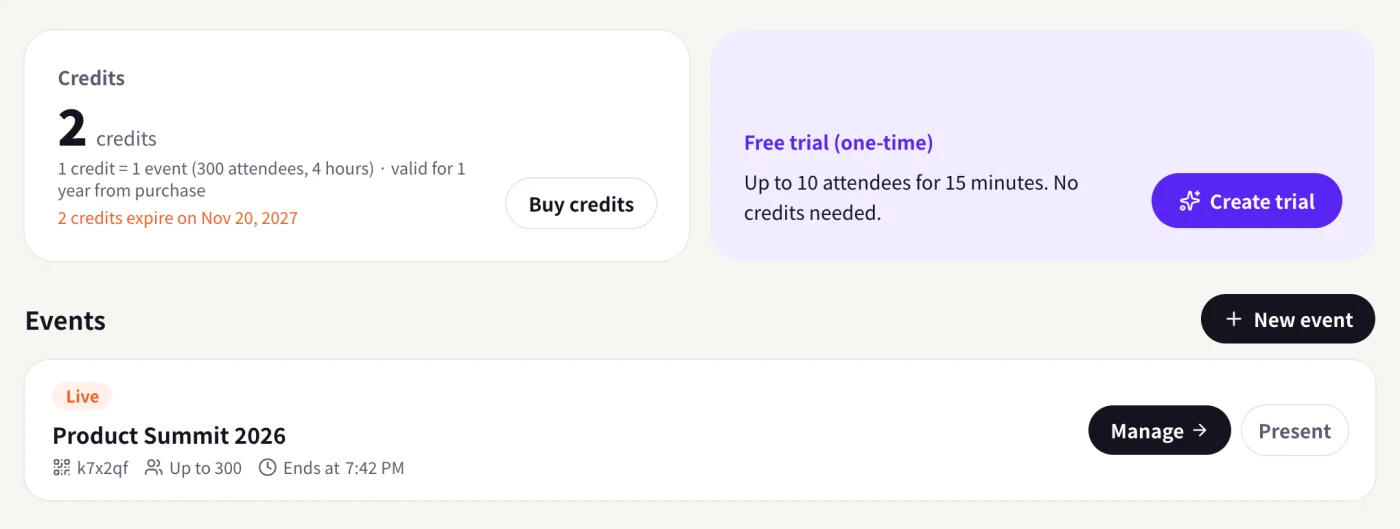
Dashboard
The dashboard, showing credits, the free trial and the list of events

STEP 03

Get the QR code ready

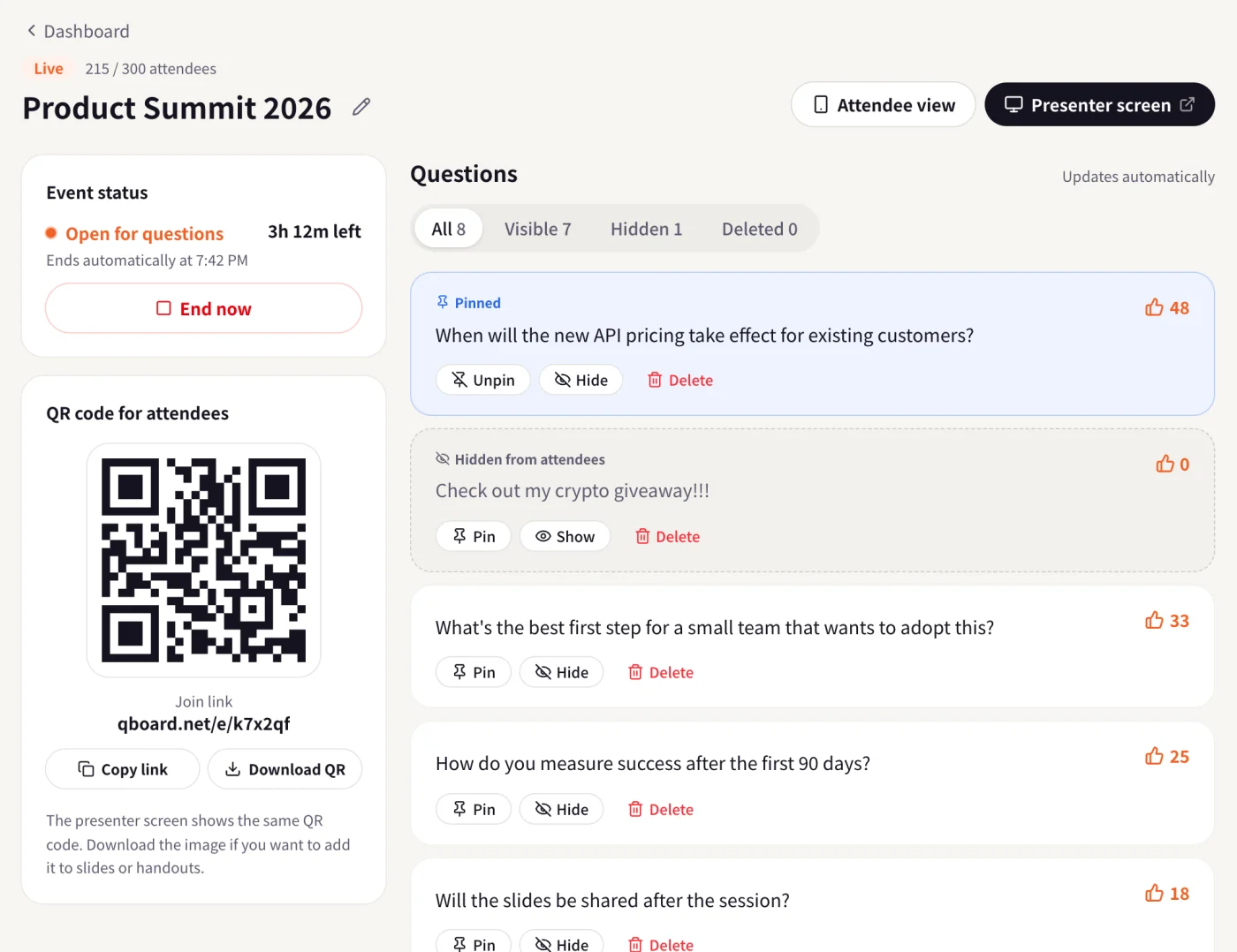
Each event gets its own QR code and join link right away. The presenter screen shows the same QR code, so putting it on screen is all you need. To add it to slides or an invitation email, download the image from the event page.

  • The QR code stays the same for the event
  • Share the link so remote attendees can join too
Event page
The event page: status and QR code on the left, questions on the right

On the day

Show the QR code, then answer

STEP 04

Press Start

Press “Start event” on the event page and attendees can begin asking questions. The event ends automatically after 4 hours (60 minutes for the trial). To finish early, press “End now”.

  • You can show and share the QR code before starting
  • Once started, an event can’t go back to “not started”

STEP 05

Attendees ask and like from their phones

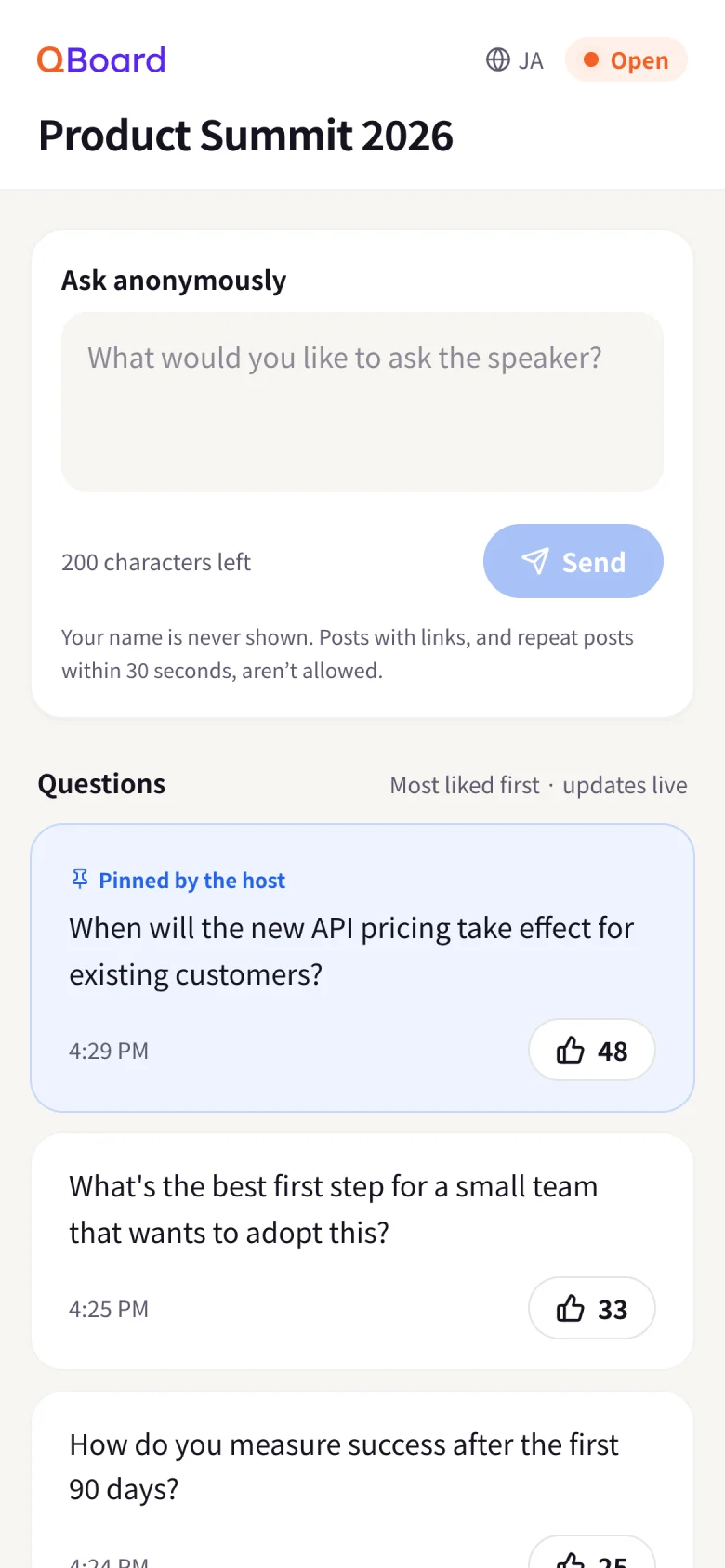
Scanning the QR code opens the attendee page — no app, no sign-up, and no names shown. Attendees like the questions they want answered, so the most popular ones rise to the top.

  • Posts with links and repeat posts within 30 seconds are blocked
  • Up to 1,000 attendees per event
  • Each attendee sees the page in their phone’s language (16 languages supported)
The attendee page on a phone: a box to ask a question and the list ordered by likes

STEP 06

Put the presenter screen up and answer

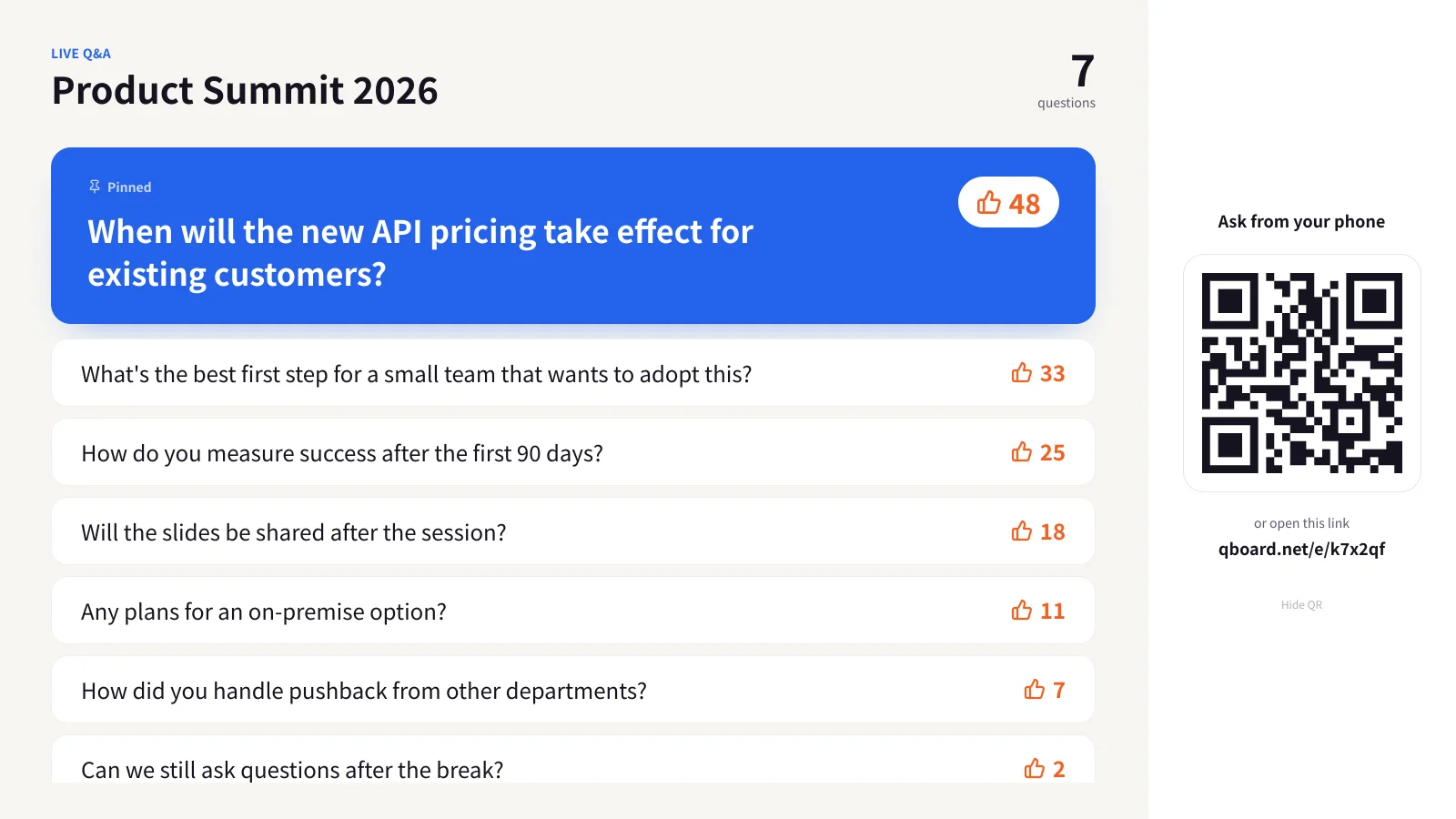
Open the “Presenter screen” from the event page and show it on a projector or large monitor. The most-liked question is shown large, so working from the top keeps the Q&A focused on what the room cares about.

  • Refreshes every 5 seconds
  • Pin a question to keep it at the top
Presenter screen
The presenter screen: the top question in a large blue card, with the QR code on the right

STEP 07

Hide anything inappropriate

You see every question in real time on the event page. Press “Hide” to remove a post from the attendee page and presenter screen. Hid one by mistake? Press “Show” to bring it back.

  • “Delete” can’t be undone
  • Hosts never see attendees’ names or email addresses

After the event

Look back at every question

STEP 08

Review the questions

When the event ends, no new questions can be posted, but everything that came in stays visible on the event page and the attendee page. Use it to follow up on questions you didn’t get to, or to plan your next session.

Google Slides

Your Q&A slide becomes the live question screen

Install the “QBoard for Google Slides” Chrome extension on the computer you present from. When your slideshow reaches the Q&A slide, that slide turns into the live question screen — no need to leave the slideshow or switch tabs.

  1. 1

    Add the extension

    On the computer you present from, add “QBoard for Google Slides” to Chrome (or Edge) from the Chrome Web Store. Attendees don’t need to install anything.

  2. 2

    Paste your event link on the Q&A slide

    Copy the join link (qboard.net/e/…) from your event page and paste it onto the slide. Pasted links become clickable automatically. If you use the QR code image instead, select it and press ⌘+K (Ctrl+K on Windows) to add the link.

  3. 3

    Present as usual

    When the slideshow reaches that slide, the live question list fills the slide and refreshes every 5 seconds. Move to the next slide and your deck is back. You advance slides exactly as before.

Add from Chrome Web Store
  • If you present from a computer without the extension, the slide simply shows the link and QR code you placed on it.
  • Works in Chrome and Edge on desktop. PowerPoint and Keynote aren’t supported yet.
Google Slides (slideshow)
The QBoard question screen shown inside a Google Slides slideshow

Tips

How to get more questions

  • 1Show the QR code on your opening slide and during breaks, so people can start writing questions early.
  • 2Say “you can ask anonymously” at the start — it noticeably increases the number of questions.
  • 3Before the Q&A, have the moderator pin two or three questions from the presenter screen to keep things moving.
  • 4Weak venue Wi-Fi isn’t a problem: attendees can use their phone’s mobile data.
  • 5Before the real event, use the free trial to ask a question from your own phone and check how the presenter screen looks.

See the pricing page for prices.Try it free

Hear from the whole room at your next event.

Sign up in a minute. Try it free as many times as you like.

Try it free

Attendees don’t need an app or an account