How to Collect Questions with a QR Code: Google Forms vs a Q&A Tool
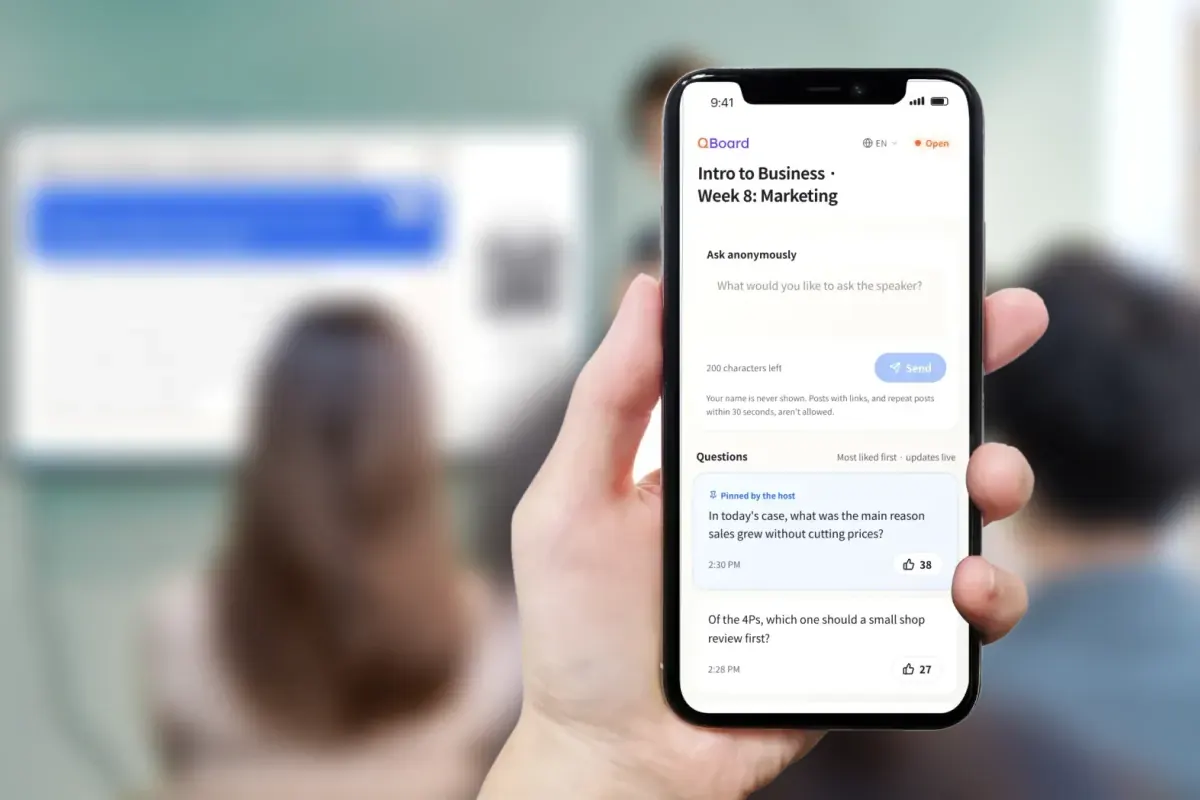
Getting people to raise their hands at a seminar is hard, and paper question cards take time to hand out, collect and read aloud.
Instead, show a QR code in the room and let people send their questions from their phones.
This article walks you through making a QR code for questions with Google Forms and with a Q&A tool, and helps you decide which one to use.
Google Forms vs a Q&A tool for collecting questions with a QR code

A QR code is the way in to a page where people write their questions. When attendees scan it with their phone camera, the page opens and they can type and send a question. What you put behind the QR code decides how you set it up: a Google Form or a Q&A tool.
| Method | Cost | Getting the QR code | Showing questions on screen live | Sorting by likes | Best for |
|---|---|---|---|---|---|
 Google Forms | Free | Make it separately | No screen for showing questions | No | Questions in advance, answers later |
 Q&A tool (QBoard as an example)Best for live Q&A | Free trial, then $19 per event | Created with the event | Has a presenter screen | Yes | Answering questions on the spot |
Logos: Google Workspace and QBoard official websites (November 23, 2026)
If you collect questions ahead of time and answer them later, Google Forms is enough. If you want to put questions on the screen during the session and answer the ones most people want to hear first, a Q&A tool takes less preparation. You can decide after you've seen the steps below.
Why collect questions with a QR code, and when it doesn't fit
The benefits: people can ask without raising a hand, and you no longer have to hand out and collect paper question cards. Questions arrive as text, so you can also use them to follow up later on the ones you didn't have time to answer.
It doesn't suit events where many attendees don't have a smartphone, or where you ask people to keep their phones away. If much of your audience isn't used to scanning QR codes, keep hand-raising or paper cards as a backup so no one is left out.
How to make an anonymous question form with a QR code in Google Forms

Google Forms is free with a Google account. You set the form up so no names are recorded, publish it, and then turn its link into a QR code.
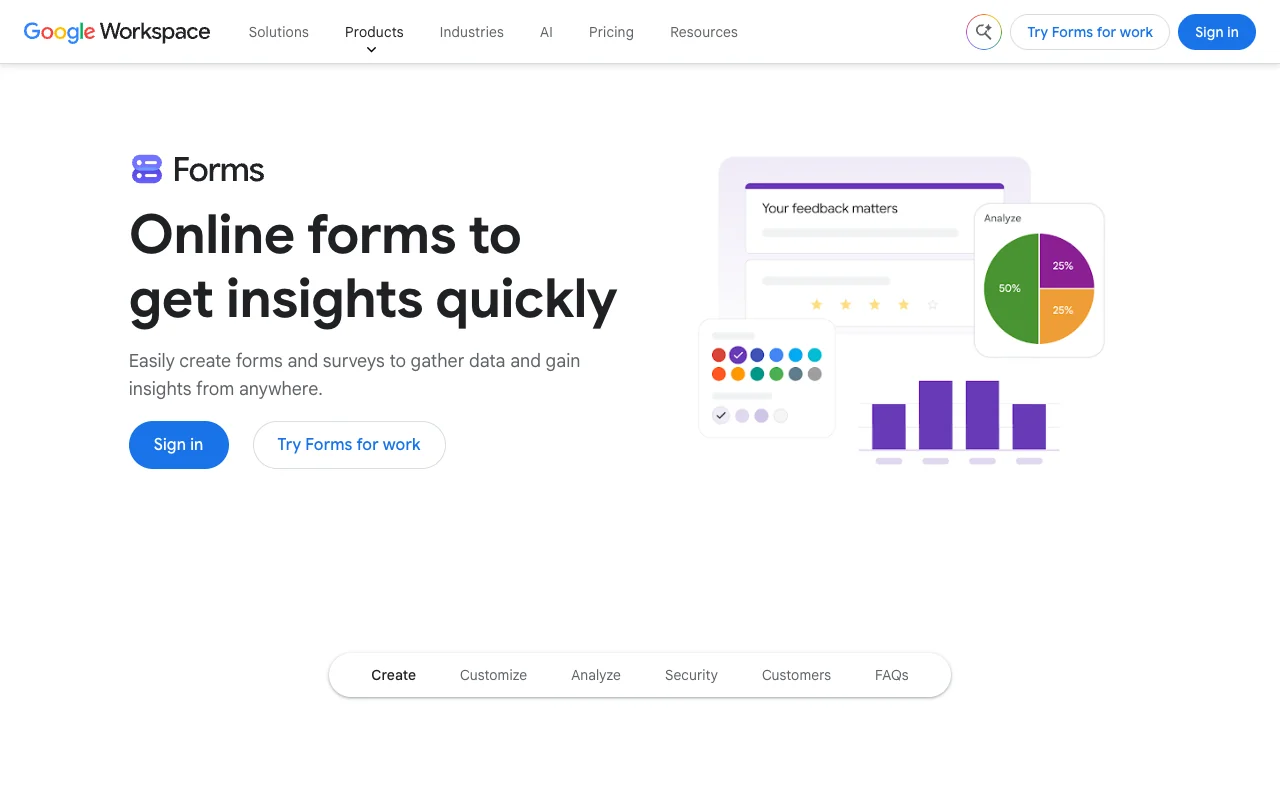
Screen: the Google Forms page on the Google Workspace website (November 23, 2026)
- Create a formIn Google Forms, start a blank form and use your event's name as the title.
- Add a field for the questionSet the question type to "Paragraph" so people can write longer questions.
- Make sure no names are recordedIn Settings → Responses, set "Collect email addresses" to "Do not collect", and turn off "Limit to 1 response".
- Publish the form and copy the linkClick "Publish", then "Copy responder link". Tick "Shorten URL" to get a short link.
- Create the QR codeOpen the responder link in Chrome on your computer, right-click an empty part of the page and choose "Create QR Code for this page". You can also use the ⋮ menu → "Cast, save, and share" → "Create QR Code".
- Save the image and add it to your slidesDownload the QR code image and put it on the slides you show before the start and during breaks.
Step 3 is easy to miss. If "Limit to 1 response" is on, respondents have to sign in to a Google account (see Google's help page Publish & share your form with responders), and the form is no longer quick to use. If you collect email addresses, you can see who sent each question. For anonymous questions, keep both off.
You can read the questions that come in on the form's "Responses" tab. There's no way to sort them by likes, though, so the moderator has to read them and pick which ones to answer. If you only want questions in advance, the easiest option is to add one field, such as "What would you like to ask the speaker?", to the end of your registration form.
Add a one-line example to the question field's description, such as "Example: How would this work for a small team?", so fewer people get stuck on what to write. When the Q&A is over, turn off "Accepting responses" to stop new posts (Google's help page View & manage form responses shows where).
How to set up a QR code for questions in a Q&A tool
With a Q&A tool, the QR code and link for joining are created as soon as you create an event. Here are the four steps in QBoard, with screenshots. Other Q&A tools such as Slido work in much the same way. Pigeonhole Live, for example, also lets attendees join with a link or QR code without creating an account.
Create an event and get the QR code
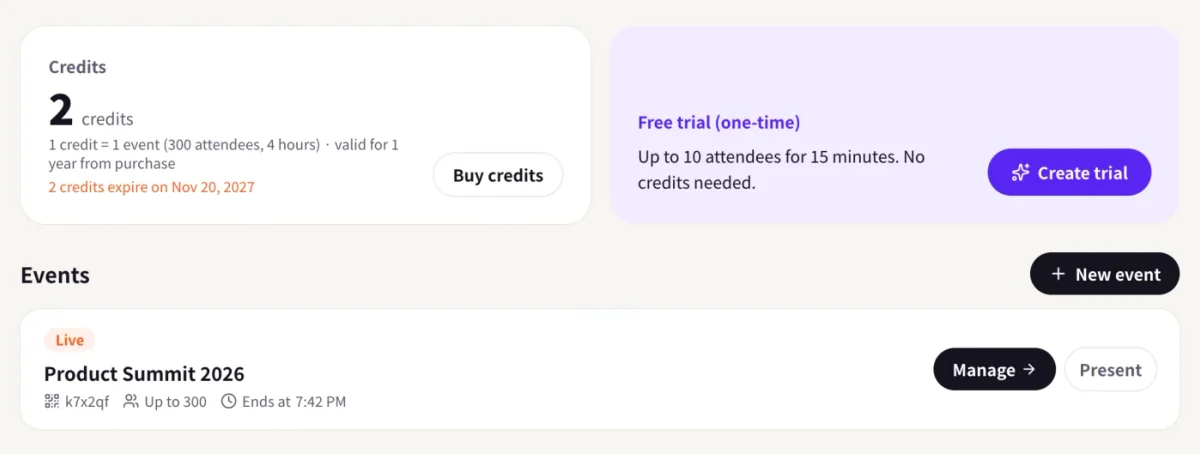
After you sign up, click "New event" on the dashboard and enter the event name. The QR code and link for joining are created right away. You can run free trial events for up to 30 participants and 60 minutes, as many as you like.
Save the QR code for invitations and handouts
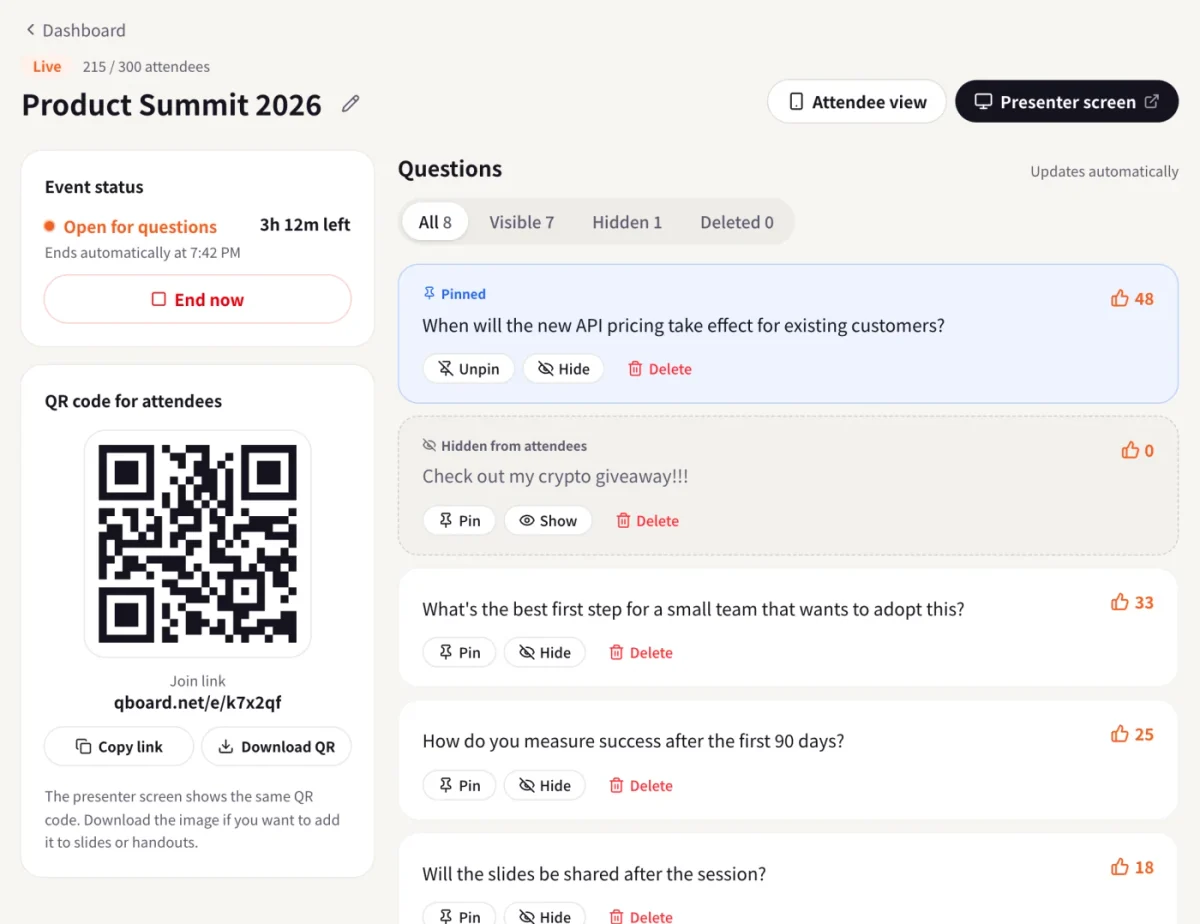
You can download the QR code image from the event page, so you can also put it in invitation emails and handouts. The QR code stays the same for the whole event, so you can send it out a few days in advance and use it as is on the day. Attendees can send questions only after you press “Start event” on the event page on the day, and the event's 4 hours start counting from then.
Attendees send questions and likes from their phones
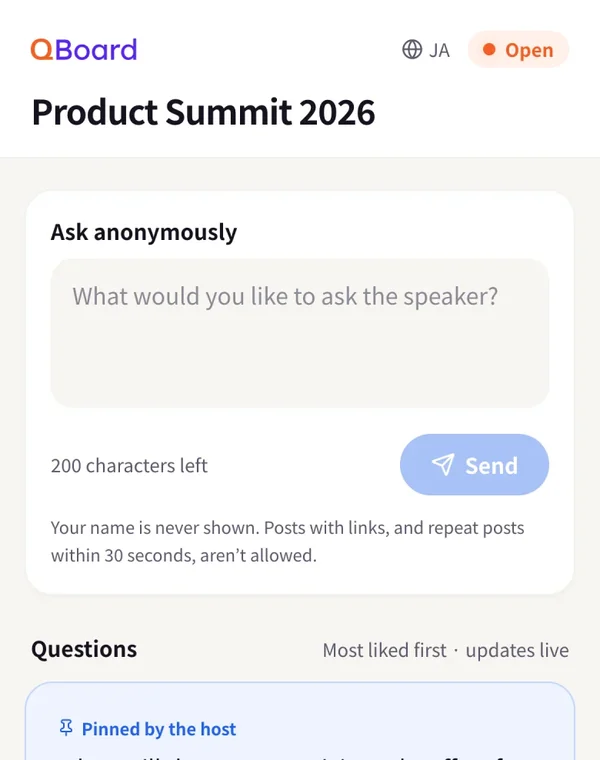
Attendees just scan the QR code and write their question. No app, no sign-up. Names are never collected, so not even you as the organizer can see who asked. When people like each other's questions, the ones most people want answered rise to the top.
Show the presenter screen and answer from the top
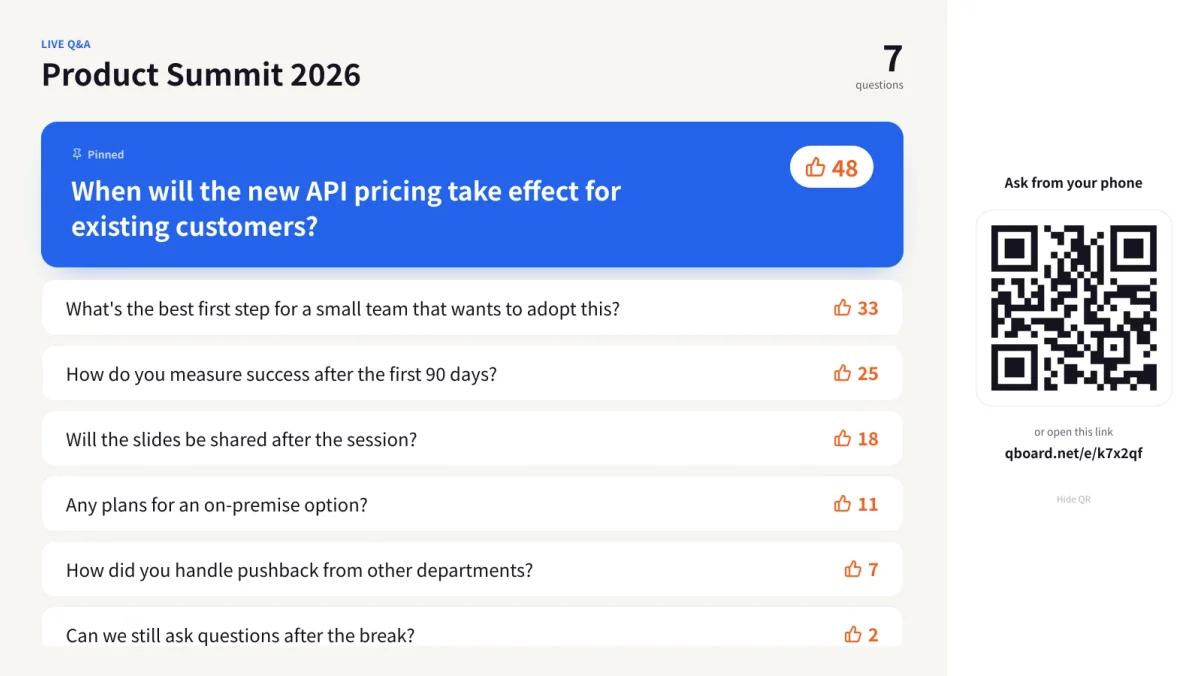
Open the "Presenter screen" from the event page and put it on the projector. The most-liked question is shown large. The screen refreshes every 5 seconds, and the QR code for joining is on the same screen, so latecomers know where to go.
Screens: QBoard's How it works page
If you present with Google Slides, you can also turn the Q&A slide with your QR code into the live question screen. Install the Chrome extension “QBoard for Google Slides” on the presenting computer and paste your event's link on the Q&A slide. When the slideshow reaches that slide, it shows the live list of questions. On a computer without the extension, the slide simply shows the link and QR code, so the same slide still works as your invitation.
Google Forms or a Q&A tool: which should you use?

For a Q&A where you answer on the spot, a Q&A tool is the better choice: show the QR code, and questions appear on the screen. Google Forms is built for reading responses in a list, so to answer questions in the room, the moderator has to pick them out and read them aloud.
On the other hand, if you collect questions in advance at registration, or take questions after the event and answer them later, Google Forms is all you need. It's free, and you can move the questions into a spreadsheet to sort them.
You can also use both. Collect questions in advance with the registration form and use one as the moderator's first question. Then, on the day, take questions from the room through the Q&A tool's QR code. That way, your Q&A doesn't start with silence.
If you're worried about anonymous questions going straight onto the screen, weigh that too. By default, only the form's owner and editors can see Google Forms responses, so the moderator can read them and choose before sharing any. A Q&A tool shows questions right away, but gives you ways to remove inappropriate posts. QBoard automatically blocks posts that contain URLs and repeat posts within 30 seconds, and you can hide any post with one tap. QBoard has no pre-approval step. In tools such as Slido and Mentimeter, reviewing questions before they appear is a paid-plan feature.
Where to show the QR code, and what to say to invite questions

Put the QR code where attendees can scan it the moment a question comes to mind. If you show it only once, right before the Q&A, the time runs out while people are still scanning. Good places to show it:
- The slide on screen before the start
- The screen during breaks
- The cover of your handout
- A poster at the registration desk
- The chat for online attendees (as a link)
Mention it three times: in your opening remarks, partway through the talk, and just before the Q&A. If people scan it the first time, they can send a question as soon as they think of one. Prepare the wording too, so the moderator doesn't have to improvise. Here are three examples you can use as they are.
You can send your questions from your phone using the QR code on the screen. Your name won't be shown, so feel free to send a question whenever one comes to mind, even during the talk.
Ask your questions here (anonymous, no app needed). Scan the QR code with your phone camera.
Please send your questions using the link below. Your name won't be shown. We'll answer the most-liked questions first.
Write a short URL near the QR code as well. Anyone whose camera can't read the code can type the address to open the question page.
QR code won't scan? What to check
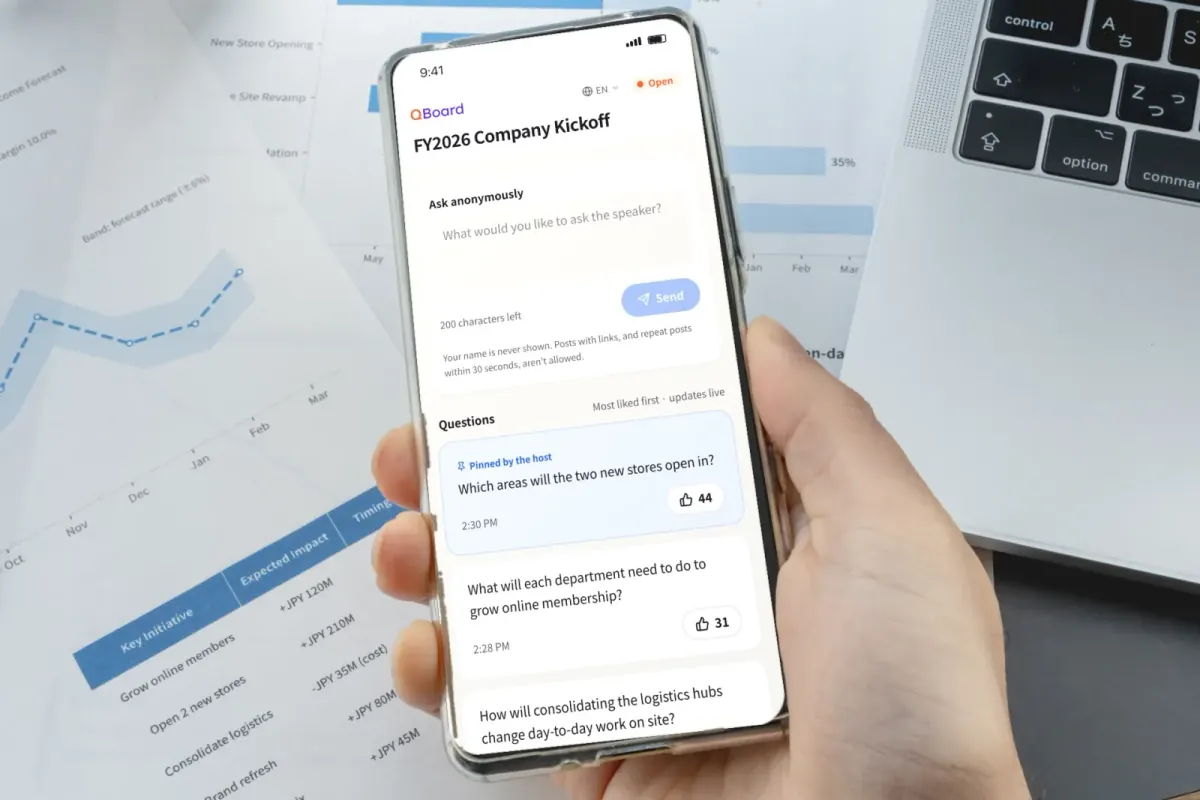
Phones read QR codes when you simply point the camera app at them. Tap the link that appears, and the question page opens. If some people still can't scan it, check these four things:
- Is the QR code too small to read from the back row?
- Is the screen too dark, or is light reflecting off it?
- If the venue Wi-Fi is weak, ask people to switch to mobile data
- If someone still can't scan it, have them type the URL
When you put the QR code on slides or posters, leave blank space around it. Denso Wave, the company that developed the QR code, says in its QR code FAQ that you need a blank margin of 4 modules around the code (a module is one of the small squares the code is made of). Don't place it over a photo or pattern. It scans more easily inside a plain white square.
Before the real event, scan it with your own phone from the back row of the venue. You'll catch problems with size and brightness early. With a Q&A tool, send one question during the free trial and check how it looks on the presenter screen.
Summary: try collecting questions with a QR code for free

For a Q&A where you answer on the spot, try a Q&A tool: show the QR code, and questions line up on the screen by likes. If you only collect questions in advance and answer them later, free Google Forms is enough.
QBoard creates a QR code for joining as soon as you create an event, and you can try it free as many times as you like. A full event is $19, with no subscription. Scan the code with your own phone from the back of the room and check that your question appears on the screen.
Attendees just scan the QR code with their phone camera. No app, no sign-up: they send questions and likes anonymously.
Try it freeFree for up to 30 participants and 60 minutes, as many times as you like