What Is a Hybrid Event? Pros, Cons, and How to Run One

You're holding an event in person and online at the same time, and you're worried the people watching on a screen will get left behind.
The answer: stream the in-room program as it happens, and give everyone one shared channel for questions and taking part. Then both audiences can join in equally.
This article covers the pros and cons, the steps to prepare, the equipment you need, and example invitation wording.
What Is a Hybrid Event? Meaning and Definition

A hybrid event is an event held at a venue and streamed online at the same time. Attendees choose whether to come in person or watch on a computer or phone. It's the format to choose when you want to open up something you used to hold only at a venue, such as a seminar, an information session, a company-wide event or an awards ceremony, to people online.
At a hybrid event, people in front of the speaker and people in front of a screen take part at the same moment. So you need to make sure everything that happens in the room reaches the online audience, and that what the online audience says makes it back into the room.
Other ways to say “hybrid event”
In invitations, a hybrid event is often described as “in person and online,” “in-person and virtual,” or “join in person or online.” Some people outside your organization may not be used to the word “hybrid,” so in external invitations, spelling it out, as in “You can join either at the venue or online,” gets the message across more clearly.
Hybrid event vs online event, hybrid meeting and online meeting
You can tell these apart by whether there's a venue, how many people take part, and how they interact.
| Format | Venue | Online | Size and interaction |
|---|---|---|---|
| Hybrid event | Yes | Yes, streamed | Large audience. People listen to speakers and join in through questions |
| Online event | No | Streamed only | Large audience. Everyone joins from a screen |
| Hybrid meeting | Yes, a meeting room | Yes, a meeting app | Small group. Everyone speaks |
| Online meeting | No | Yes, a meeting app | Small group. Everyone speaks |
A hybrid meeting is a meeting where a few people in a meeting room talk with others joining from home or while traveling. It differs from an online meeting, where everyone joins from their own location, because some people are together in a room. Both assume everyone speaks. A hybrid event, on the other hand, is a large audience listening to speakers, so most of the preparation is about streaming what happens at the venue.
Hybrid Event Pros and Cons

The biggest advantage of a hybrid event is that people who can't come to the venue can still take part. On the other hand, preparing both a venue and a stream means more work and more things that can go wrong.
Pros
- People far away can join from home
- You can reach more people than the venue has seats
- People in the room can talk to speakers directly
- The recording can be shared on demand afterward
- People who can't make it on the day can still watch online
Cons
- You have to prepare both the venue and the stream
- Equipment or connection problems can happen
- Online attendees are easily left behind
- You need more staff on the day
- It's hard to predict how many will come in person
For attendees, skipping the travel time and cost is a big plus. Employees at regional offices, or people who can't easily leave home because of childcare or caring for a family member, can hear the same talk at the same time online. For organizers, you don't have to close registration because the venue is full, so you can reach more people.
Preparation reduces the drawbacks of a hybrid event
Of the drawbacks, online attendees being left behind is the one to watch most closely. The moderator and speakers naturally focus on the room in front of them. Questions asked in the room can't be heard on the stream unless they go through a microphone, and questions typed in the chat may never be read out at all. Just deciding in advance who watches the sound and video, and who picks up what online attendees say, will cut the problems on the day considerably.
Not knowing how many people will show up in person is another headache that comes with hybrid events. Even if people choose how to attend when they register, some will switch to online on the day. Prepare seats and handouts based on registrations, but set the room up so a smaller turnout isn't a problem, for example by guiding people to sit together so empty seats don't stand out.
Preparation time and cost also go up compared with holding the event only in person or only online. If it's your first one, start small with a minimal equipment setup. The next section walks through the preparation in order.
How to Run a Hybrid Event: Planning Steps

Preparing a hybrid event means preparing an in-person event, plus the stream and a way to welcome online attendees. Work through these seven steps in order.
- Set your goal and the balance between in-person and onlineWhether you put networking in the room first or reaching many people online changes the size of venue you need and how much effort goes into the stream.
- Choose the venue and the streaming platformOn your site visit, check that the venue has a wired internet connection, power outlets and a place to set up a camera.
- Assign roles for the dayChoose a moderator, a streaming operator, an online host and venue staff, and write down who watches what.
- Send invitations and take registrationsAsk people to choose in-person or online when they register.
- RehearseIn the same venue with the same equipment, check the sound and video from the online side.
- Run the eventTest the stream before you start, and once it begins, speak to both the room and the online audience.
- Publish the recording and reviewSend out the recording, a survey and answers to the questions you didn't get to.
The balance between in-person and online that you set first affects everything else. For an awards ceremony where the venue is the main stage, one camera is plenty for the stream. For an information session where most attendees are online, putting effort into streaming the slides cleanly will leave people more satisfied.
For the streaming platform, the quickest route is to start with what your company already pays for. For internal events, choosing a meeting app employees already use, such as Zoom or Teams, also saves you explaining how to join. For events you want the public to see, a streaming service such as YouTube Live is an option. When you decide, ask whether online attendees will need to speak, or only watch.
Roles and staffing on the day
A hybrid event easily goes wrong when the moderator also handles everything online alone. Give at least these four roles to different people:
- Moderator: runs the program and speaks to both the room and the online audience
- Streaming operator: handles the camera, microphones and screen switching, and checks how the stream looks
- Online host: watches online questions and chat, and reads them out
- Venue staff: runs reception and brings the microphone to people asking questions in the room
Think of the online host as the online attendees' representative in the room, and the role becomes clear. Noticing comments like “I can't hear” or “The slides aren't showing” right away and passing them to the streaming operator is an important part of the job. If you're short-staffed, plan for what happens after the start too, for example by having venue staff take over as online host once reception is done.
Check the rehearsal from the online side
In the rehearsal, check the sound and video as they arrive on the stream, not what you hear from the venue speakers. Have someone outside the venue join from a phone or computer, just as they would from home, and you'll get a clear sense of the microphone volume and the text size on the slides. Also check whether speakers stay in the camera frame when they step away from the podium.
Hybrid Event Equipment and Streaming Setup

Think of the equipment for a hybrid event as the venue's own equipment plus equipment for streaming. If you're starting small, separate what you need from what you can do without.
| Equipment | What it does | When starting small |
|---|---|---|
| Camera | Films the speaker for the stream | Needed. One webcam is enough to start |
| Microphone | Carries voices to the room and the stream | Needed. Put the most effort here |
| Streaming computer | Runs the streaming platform and shows the slides | Needed |
| Internet connection | Sends video and sound online | Needed. Wired is best |
| Screen and projector | Shows slides and questions in the room | Use the venue's |
| Video switcher | Switches between camera and slides | Not needed with one camera |
| Phone for checking | Shows how the stream looks to viewers | Worth having one |
Of all of these, put the most effort into the microphone. If the video is a little rough, people still follow the talk. But if the sound cuts out or is muffled, online attendees can't keep up. Ask the venue's staff in advance whether the room's microphone audio can be fed into the streaming computer.
If online attendees will ask questions out loud, also check the other direction: whether the streaming computer's audio can play through the venue speakers. If the room can't hear online attendees, the speaker can't answer them.
Don't rely only on the venue Wi-Fi. On your site visit, check whether you can use a wired connection. Venue Wi-Fi may be the same network attendees' phones use, so it can slow down on the day when the room fills up. During the event, have the streaming operator listen to the stream on the checking phone with earphones, watching for video lag or sound dropping out, so you catch problems right away.
The smallest setup, and when to hire help
For a small event like an internal briefing, you can start with one laptop, a webcam and a microphone, streaming through your usual meeting app. Share the slides from the streaming computer and show the same screen on the venue projector, and the room and online audience see the same thing.
Some events are different: you want to switch between several cameras, there are many attendees and no room for mistakes, or no one in-house has streaming experience. If any of these apply, talk to a streaming production company or a venue that provides streaming equipment and staff. Even then, have the online host come from your own team, so you pick up attendees' voices yourselves.
Hybrid Event Q&A: One Q&A for In-Person and Online Attendees

The most common Q&A mistake at hybrid events is splitting questions into two channels: raised hands in the room and chat online. The moderator ends up watching for hands while following the chat, and the online questions get pushed to the back. And when someone in the room raises a hand and asks, the stream won't hear it unless the question goes through a microphone.
To avoid this, the simplest fix is to have everyone, in the room and online, send questions from the same QR code or link, so there's just one channel for questions. Here's how the options compare:
| How you take questions | In-person attendees | Online attendees | All in one list? |
|---|---|---|---|
| Raised hands and chat | Raise a hand | Type in the chat | No. You compare two places |
| The streaming platform's Q&A | Can't send unless they join the stream | Send through Q&A | No. Raised hands are separate |
| Q&A tool with a QR code or linkRecommended | Send from their phone | Send from the link | Yes, one list |
If you use a Q&A tool, show the QR code on the screen in the room, and either show the same QR code on the stream or paste the link in the chat. Questions from both appear in the same list, so the moderator can work down it from the top without treating the room and online differently.
With QBoard, anonymous questions are sorted by likes
With QBoard, for example, attendees just open the QR code or link and send questions from their phone's browser. There's no app to install and no sign-up, so attendees who aren't confident with phones, and people joining online for the first time, are unlikely to get stuck. Questions arrive anonymously. Names are never collected, so not even the organizer sees who asked, which makes it easier for people who don't like speaking up in front of others to send a question. When overseas offices or international employees join online, the participant screen and the projector screen switch to each device's language, in 16 languages including English, Chinese, Korean and Japanese, and questions can be written in any language.
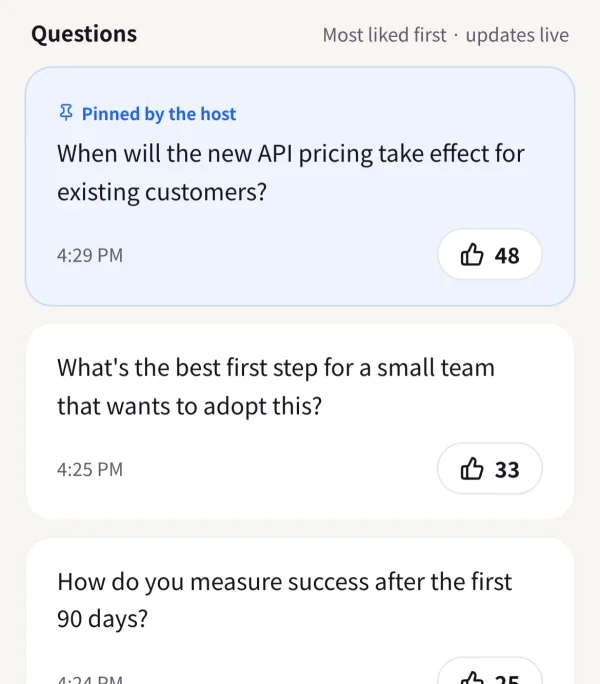
Screen: QBoard participant view
When people like each other's questions, the most-liked rise to the top. Questions from the room and from online appear in the same list, so you can answer the ones most people want to hear first, wherever they came from. The projector screen refreshes automatically every 5 seconds, so if you show it on both the venue screen and the stream, new questions appear right away. QBoard costs $19 per event, for up to 1,000 people in the room and online combined, for 4 hours from when you press Start.
If you present with Google Slides, install the free Chrome extension “QBoard for Google Slides” on the presenting computer and paste the event URL on your Q&A slide. When the slideshow reaches that slide, the live question list appears on it, so you don't need to switch the stream from your slides to the projector screen either.
One thing to watch: questions from whichever side has more people tend to collect more likes. Look through questions with few likes too, and have the moderator pick one up now and then, so attendees on the smaller side aren't left behind.
Choose one person to read questions aloud
Once you have one channel, choose one person to read the questions aloud. If the online host or the moderator reads out the question picked from the list and hands it to the speaker, everyone in the room and online hears the same question.
When you take a question from someone who raised a hand in the room, always hand them a microphone, or have the moderator restate it (“The question is…”) before the speaker answers. Skip this, and online attendees hear only the answer and have no idea what it's about.
If you use your streaming platform's Q&A
If you stream on Zoom, you can also take questions with Zoom's Q&A feature. But people sitting in the room who haven't joined the Zoom can't send questions, so you'll take room questions by raised hands, and the moderator has to watch both. For how to turn on Q&A in Zoom and allow anonymous questions, see our guide to using Q&A in Zoom.
To make a QR code for questions to show at the venue, see this article:
Hybrid Event Invitation Examples

In a hybrid event invitation, say first that people can join either in person or online. Then give the date and time, the venue, how to join online and how to ask questions. When and where you'll send the online link is what attendees most often wonder about.
- [In person & online] Invitation to [Seminar name]
- We're holding a seminar on [topic], both at a venue and online.
- Date and time: [Day], [Month] [Date], 2:00–3:30 pm
- Venue: [Hall name], [Address]
- Online: We'll email you the link to join by the day before
- Registration: On the form, please choose whether you'll join in person or online
- Questions: On the day, you can send questions from your smartphone using the QR code on the screen
- Subject: [In person & online] [Month] all-hands meeting
- We're holding our all-hands meeting on [Day], [Month] [Date], starting at 3:00 pm.
- Venue: Main conference room, [floor], headquarters
- Online: Join with the meeting link in the calendar invitation
- Questions: On the day, send questions from the QR code on the screen. Your name won't be shown
- To send a question in advance, use this form by [date]
For external events, asking people to choose how they'll attend when they register makes it easier to plan seats and handouts. Send the link too early, and it gets buried, so consider sending it twice: the day before and the morning of the event. For internal events, mention whether you'll share the recording afterward, so people who can't attend on the day don't worry. And if you collect advance questions through the registration form or an internal form and take questions on the day by QR code, say so separately in the invitation, so no one is unsure where to send them.
Summary: Plan Your Hybrid Event Around One Shared Channel

A hybrid event is an event held in person and online at the same time. Stream the in-room program as it happens and give the room and online attendees one channel for questions, and online attendees won't be left behind. For a first event, one camera, a microphone and your usual meeting app are enough to start small.
Start by setting your goal and the balance between in-person and online, and in the rehearsal, check sound and video from the viewer's side of the stream. QBoard's free trial (up to 30 participants for 60 minutes) can be used as many times as you like, so run through your question channel end to end, with the same venue and streaming flow as the real event.
With the same QR code and link, in-person and online attendees send anonymous questions from their phones. Questions are sorted by likes, so you don't miss anyone's questions on either side.
Try it freeFree trial: up to 30 participants for 60 minutes, as many times as you like. Participants need no app and no sign-up