How to Use Zoom Q&A in Meetings: Anonymous Questions and Q&A vs Chat

You ask people to type their questions in the Zoom chat during your seminar. Then the questions get buried under greetings and comments, and some never get answered.
The fix: turn on Zoom's Q&A feature. Questions collect in a single list, and you can keep the answered ones separate.
This article covers which accounts can use Q&A, how to enable it, how anonymous questions work, and how Q&A differs from chat.
What Is Zoom Q&A? Plans and Requirements

Zoom's Q&A lets meeting participants type and send questions, and the host and co-hosts answer them. There are three ways to answer: type an answer that everyone can see, send a typed answer privately to the person who asked, or mark the question to be answered live, out loud. After the meeting, you can also generate a Q&A report.
Not every Zoom account has it, though. These are the plans Zoom Support lists as required for using Q&A in meetings:
| Account plan | Q&A in meetings |
|---|---|
| Basic (free) and Pro | Not on the list of eligible plans |
| Zoom Business / Zoom Workplace Business, Business Plus, Enterprise and Enterprise Plus | Eligible |
| Education accounts | Eligible |
Source: Zoom Support, “Enabling Q&A for meetings” (checked November 24, 2026)
If you're not sure which plan your company's Zoom account is on, ask whoever manages Zoom in your organization. There are app requirements too: the desktop app (Windows, macOS, Linux) and the mobile app (Android, iOS) must be at Zoom's global minimum version or later. Q&A also works in the Zoom web app, which runs in your browser.
If your company runs Zoom Webinars, you can use Q&A there as well. In webinars, panelists can answer questions too, and questions can be sorted by upvotes. That helps most at events with a large audience.
How to Enable Q&A in Zoom Meetings

To use Q&A in a meeting, the host first has to turn it on in their own account settings. Open the Zoom web portal in your browser and follow these steps:
- Sign in to the web portalSign in to the Zoom web portal with the account you'll host from.
- Open Settings, then the Meeting tabClick “Settings” in the menu and switch to the “Meeting” tab.
- Turn on “Q&A in meetings”Under “In Meeting (Advanced)”, turn on “Q&A in meetings”. If a confirmation dialog appears, click “Enable”.
- Choose the additional settingsPick the options you want: “Attendees can submit questions”, “Allow anonymous questions” and “Allow attendees to view”.
Sometimes “Q&A in meetings” is grayed out and won't switch on. That means the setting is locked at the group or account level. You can't change it yourself, so contact whoever manages Zoom in your organization.
If you want everyone in the company to have Q&A, an admin can turn it on for the whole account. Go to “Account Management” → “Account Settings” → “Meeting” → “In Meeting (Advanced)”, enable “Q&A in meetings”, and lock it. Then the setting won't vary from user to user.
Select Q&A when you schedule the meeting
Once the setting is on, you also select Q&A when you schedule each meeting. In the web portal, go to “Meetings” and schedule a new meeting. In the meeting options, check “Q&A”, then click “Schedule”. For a meeting you've already scheduled, edit it and check the same box.
If you don't see “Q&A” among the options, Q&A is disabled on your account. Again, ask your admin to turn it on.
You can change the anonymous and upvote settings for each meeting. Open the meeting topic from your “Meetings” list, go to the “Q&A” tab at the top, and click “Edit”. Choose from “Allow anonymous questions”, “Allow participants to view”, “Participants can upvote” and “Participants can comment”, then click “Save”. Once the meeting has started, the host can still change these from the gear icon at the top right of the Q&A window.
How to Use Zoom Q&A: Hosts and Participants

Once the meeting starts, the host or a co-host clicks “Q&A” in the meeting controls to open the list of incoming questions. If people from outside your organization are attending, their names are marked “(Guest)”, so you can tell their questions apart from your colleagues'. There are three ways to answer a question:
- “Answer live”: marks the question to be answered out loud
- “Type answer”: answer in writing, visible to everyone
- “Send privately”: send your written answer only to the person who asked
For example, answer questions that matter to many participants out loud, and use “Type answer” for anything you want to leave in writing, such as a link to the slides. For a question about someone's personal situation, reply only to that person with “Send privately”.
Removing questions in Zoom Q&A: Dismiss vs Delete
To clear away questions you won't answer, or ones unrelated to the session, click the ellipsis next to the question and choose “Dismiss” or “Delete”. Both remove the question from the list. The difference is whether you can bring it back.
| Action | What happens | Can you undo it? |
|---|---|---|
| Dismiss | Hidden and moved to the “Dismissed” tab | Yes, you can reopen it |
| Delete | Removed permanently | No, it can't be reopened |
Deleted questions can't be recovered, so when in doubt, choose “Dismiss”.
How Q&A differs in Zoom Webinars
In webinars, panelists can also see the questions, along with the host and co-hosts, by clicking “Q&A” in the webinar controls. Questions are listed in the order they were sent, with the newest at the bottom. If the host's and panelists' apps are version 5.8.6 or later, they can sort the list by the most upvotes, so you can answer the questions the most people want answered first.
When a panelist clicks “Answer live” and answers out loud, they finish by clicking “Done”. The question then moves to “Answered”, separate from the questions still waiting. The host or a co-host can also click “Done” after a panelist answers, so the moderator can tidy up the list for everyone.
How participants ask: where is Q&A in Zoom?
Participants open “Q&A” on the meeting screen, type their question and send it. Still, some people won't find Q&A and will post in the chat out of habit. Tell people where to send questions twice, once right at the start and again just before the Q&A, and they won't get lost.
Please send your questions through “Q&A” on your screen, not the chat. You can send them without your name if you prefer. We'll answer them during the Q&A at the end.
Can You Ask Anonymous Questions in Zoom? Can the Host See Who Asked?

Yes, Zoom meetings can take anonymous questions. If the host turns on “Allow anonymous questions”, participants can send questions to Q&A without giving their name.
But can anyone really not tell who sent an anonymous question? According to Zoom Support, the names of participants who send anonymous questions aren't available to the host or the account admin, and they aren't tracked. So even at an internal briefing hosted by your manager, no one can trace an anonymous question back to you.
That said, if a question mentions a department or a specific project, people may guess who wrote it from the content. Add a line such as “No need to mention your department,” and people will feel even safer sending questions.
Why Zoom questions aren't anonymous
If people can't send anonymously, or their names show up, first check the host's “Allow anonymous questions” setting. If it's off, every question arrives with the sender's name and appears that way in the host's list. If you forgot to turn it on when scheduling, you can turn it on later: click “Edit” on the meeting's “Q&A” tab or, once the meeting has started, use the gear icon in the Q&A window.
The other cause is how the participant sends the question. Only questions sent anonymously have the name hidden. Even when anonymous questions are allowed, a question sent without choosing to be anonymous arrives with the sender's name. Put “You can send questions without your name” in your announcement, and fewer people will be unsure how to send.
Who sees the questions: “Answered questions only” or “All questions”
When “Allow attendees to view” is on, you choose how much of the question list other participants can see:
| Setting | Questions participants see | Upvotes and comments | Best for |
|---|---|---|---|
| Answered questions only | Only the questions the host has answered | Not available | Briefings where tough questions are likely |
| All questions | Every question received | Can be allowed | Sessions where you want to answer the most-upvoted questions first |
Sources: Zoom Support, “Enabling Q&A for meetings” and “Using Q&A in Zoom meetings” (checked November 24, 2026)
If it's fine for participants to see each other's questions, choose “All questions” and allow upvotes too. People who want to ask the same thing upvote, so you can see at a glance which questions the most people want answered. On the other hand, if you expect harshly worded questions precisely because they're anonymous, choose “Answered questions only”. Participants then see only the questions the host has answered.
If a question still bothers you, “Dismiss” hides it from participants. Account admins can also apply their “Chat Etiquette” keyword policies to Q&A.
Zoom Q&A vs Chat: What's the Difference?

In chat, greetings, comments, links to the slides and questions all flow into one stream in the order they arrive. That's fine for a small meeting. In a seminar with many participants, though, questions get pushed out of view by the next messages, and the host easily misses them. Q&A takes only questions, so every question you receive stays in the list.
| Feature | Q&A | Chat |
|---|---|---|
| What comes in | Questions only | Questions mixed with greetings and comments |
| Answered questions | Moved to “Answered” or “Dismissed” | You have to remember which ones you answered |
| Sorting | Webinars: sort by the most upvotes | Stays in the order received |
| Best used for | Taking and answering audience questions | Greetings, comments and links to materials |
Source for the Q&A features: Zoom Support help articles (checked November 24, 2026)
To use both, tell participants up front: questions go in Q&A, greetings and links go in the chat. When someone posts a question in the chat, the moderator can say, “Could you also send that through Q&A?” and the questions stay in one place. Q&A also lets you generate a Q&A report after the meeting, which helps when you reply later to the questions you didn't get to.
Zoom Q&A Not Showing? What to Check

If Q&A doesn't appear in your meeting, check these four things in order:
- Does your account plan qualify?Q&A in meetings requires Zoom Business, Zoom Workplace Business or higher, or an Education account. Basic and Pro aren't on the list.
- Is the Q&A setting on?In the web portal, go to “Settings” → “Meeting” and check “Q&A in meetings”. If it's grayed out and you can't change it, it's locked at the group or account level.
- Did you select Q&A for the scheduled meeting?Check that “Q&A” is checked in the meeting options. If the option isn't there at all, Q&A is disabled on your account.
- Is your Zoom app up to date?Both the desktop and mobile Zoom apps must be at the global minimum version or later.
Sometimes Q&A opens, but participants can't see other people's questions. In that case, check whether “Allow attendees to view” is off or set to “Answered questions only”. If participants can't send questions at all, also make sure “Attendees can submit questions” is on.
How to Collect Questions on a Free Zoom Plan or From People in the Room
If your account doesn't meet the Q&A requirements, or you're running a hybrid event with people both in the room and on Zoom, you can use a question tool that opens in the browser instead. People sitting in the venue, in particular, can't send questions to Zoom Q&A unless they've joined the Zoom meeting.
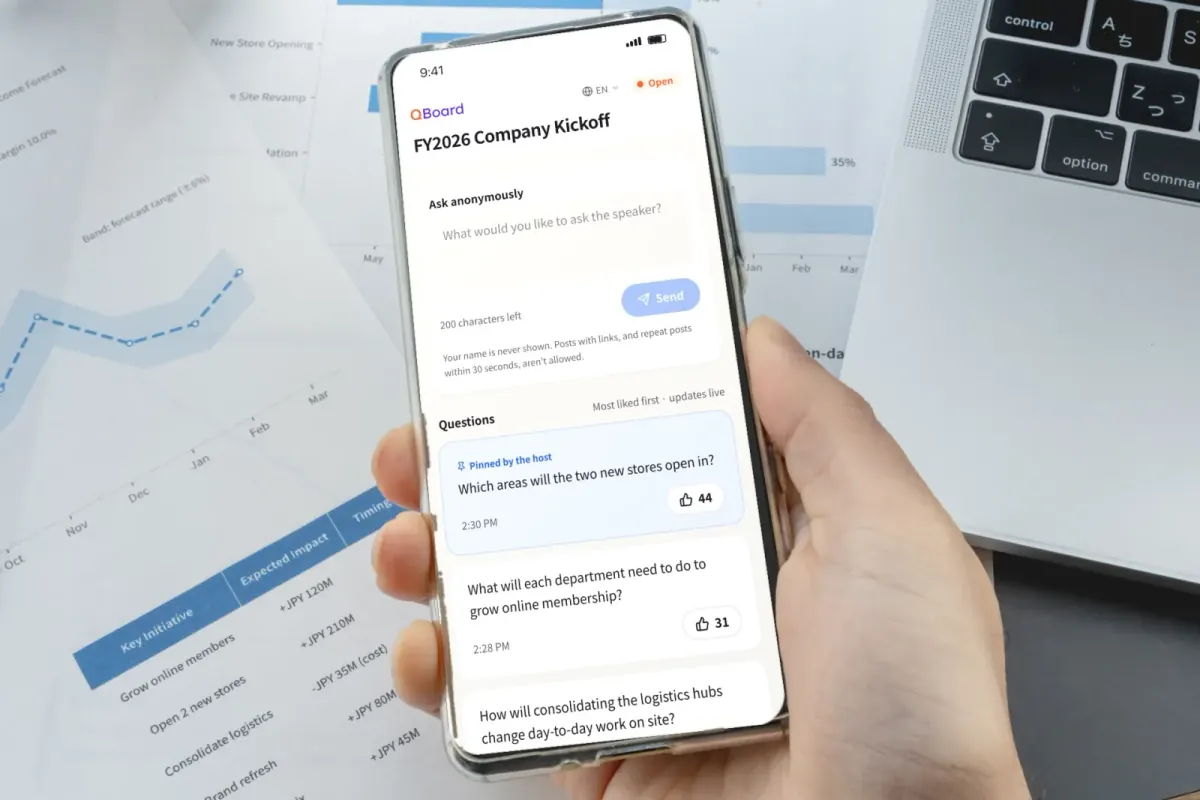
With QBoard, for example, participants open the question page in their phone's browser from a QR code or link, with no app and no sign-up. Questions arrive anonymously, and names and email addresses don't appear, not even on the organizer's screen, so people find it easier to ask awkward questions. Participants can like other people's questions, and the list is sorted by likes, so it works much like upvotes in a Zoom webinar.
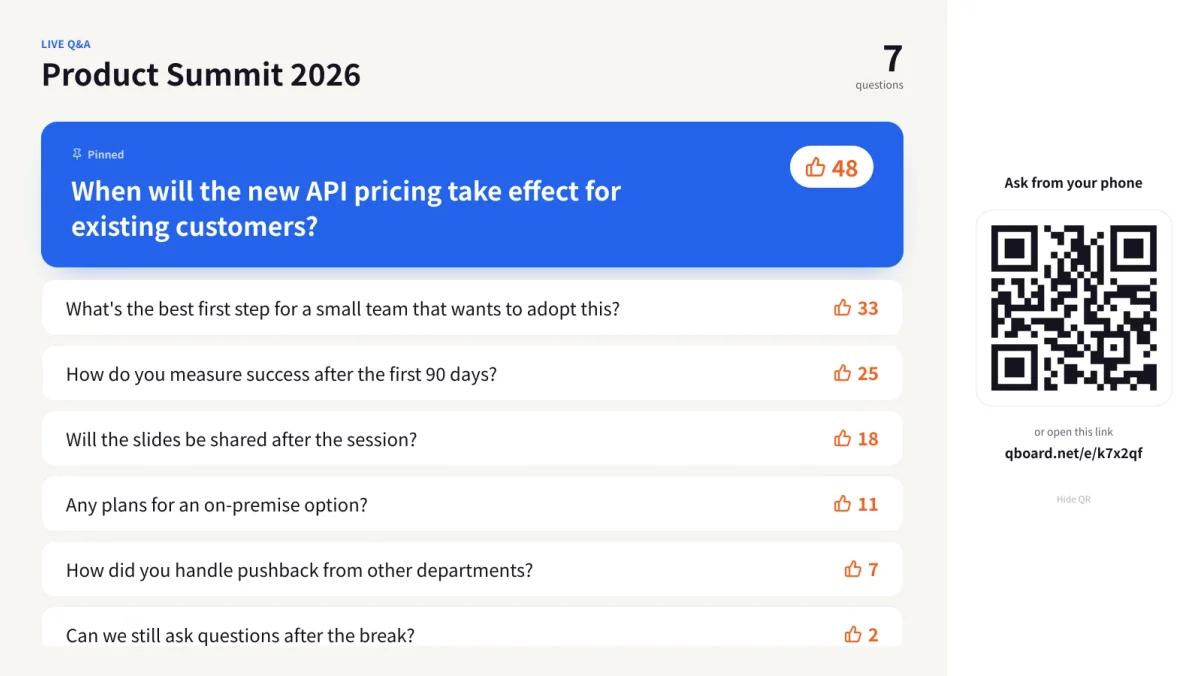
Screen: QBoard's projector view
Share this projector screen in Zoom, and online participants see the same question list as the screen in the room. If your slides are in Google Slides, install the extension “QBoard for Google Slides” and paste the event URL on your Q&A slide. When your shared slideshow reaches that slide, it switches to the live question list.
QBoard costs $19 per event with no monthly fee, and each event runs for up to 1,000 participants for 4 hours from when you press Start. For how to prepare when you run the room and online at the same time, see how to run a hybrid event. For how it compares with other question tools, see the article below.
Summary: Turn On Q&A for Your Next Zoom Session

To take questions at a Zoom seminar or briefing, use Q&A instead of the chat, and turn on “Allow anonymous questions” as well. Questions stay in a list, so fewer go unanswered, and the names of people who send anonymous questions aren't shown to the host or the admin.
Start by opening “Settings” in your own account and checking whether you can turn on “Q&A in meetings”. If your account doesn't meet the Q&A requirements, or people in the room will be asking too, see how questions come in with QBoard's free trial. You can use it as many times as you like with up to 30 participants for 60 minutes.
Participants open a QR code or link and ask anonymously from their phone's browser. Questions are sorted by likes, so the moderator just reads them out from the top.
Try it freeFree trial: up to 30 participants for 60 minutes, as many times as you like. Participants need no app and no sign-up