How to Collect Anonymous Questions in Class: Free Tools for University Lectures

You ask “Any questions?” in a big lecture hall, and almost no hands go up.
When that happens, build a way into your class for students to send questions from their phones without giving their names.
This article compares four ways to collect anonymous questions (paper, forms, Q&A tools and chat) and walks you through taking questions during class.
What Changes When Students Can Ask Questions Anonymously

When students don't raise their hands in class, it doesn't always mean they have nothing to ask. Raising a hand in front of a crowd makes you stand out, and some students hold back because they worry a basic question will get laughed at. The bigger the room, the more nerve it takes to ask a question with your name and face on show.
utelecon, the University of Tokyo's online teaching guide, notes that some students find it hard to ask when their name is displayed. It then splits the ways of taking questions into two settings. During class, especially in large classes, it suggests a tool that lets students ask anonymously. Outside class, it suggests the learning management system (LMS) or a chat app.
The same site describes a class of about 20 students in the Faculty of Education that tried anonymous questions. Zoom's chat shows names, so the instructor started with Slido, where students could ask anonymously, and students seemed comfortable asking. As the course went on, more students asked directly in the chat or out loud, and the class stopped using Slido. An anonymous channel can also work as an on-ramp until students get used to asking questions.
Anonymous questions also change what you, the instructor, can see. The wording of a question tells you where students got stuck. With a tool where students can like each other's questions, you can also see how many share the same confusion. In a lecture of more than 100 students, it's hard to read understanding from faces, so the questions themselves become your clue. That makes it easier to decide what to re-explain at the start of the next class.
4 Ways to Collect Anonymous Questions in Class

You can collect anonymous questions in class with paper comment cards, a Google Forms survey, a real-time Q&A tool, or the chat or Q&A feature of your online class platform. Here's how they compare on whether you can answer on the spot, whether students' names show, and how much setup they take.
| Method | Answering on the spot | Students' names | Setup | Best for |
|---|---|---|---|---|
| Paper comment cards | You answer in the next class | Hidden if you drop the name field | Hand out cards and collect them | Smaller classes where you also want feedback |
| Google Forms | Read out responses as they come in | Hidden if you don't collect email addresses | Make a form and share the URL or a QR code | Classes where you also want questions outside class |
| Q&A toolOur pick | Put questions on the screen and answer | Not shown | Create an event and show the QR code | Lectures of more than 100 students |
| Chat or Q&A in your video tool | Answer while watching the screen | Shown in the chat | Change your video meeting settings | Online classes |
Sources: Google Docs Editors Help (checked November 23, 2026); utelecon, the University of Tokyo's online teaching guide, on ways to take questions in class (checked November 24, 2026)
Paper comment cards are the slips you hand out at the end of class for students to fill in, like minute papers or exit tickets. Drop the name field and they're anonymous, and students can add their thoughts on the class too. But you can only answer after you've collected and read them, so the answers wait until the next class. In a large lecture hall, just reading them takes time.
Google Forms is free, and if you don't set it to collect email addresses, no student names are recorded. Turning on “Limit to 1 response” makes students sign in to a Google account, so leave it off if you want questions to be quick to send. On the other hand, sorting the questions and putting them on the screen is manual work.
With a real-time Q&A tool, students scan a QR code with their phones and send questions. You put them on the screen and answer during class. Students can like each other's questions, so the bigger the lecture, the easier it is to decide which questions to answer first.
For online classes, you can also use the chat or Q&A feature of your video meeting tool. Zoom's chat shows names, though. If you want anonymous questions, turn on anonymous questions in Zoom's Q&A, or paste a Q&A tool's link in the chat.
How to Take Anonymous Questions and Comments Live During Class
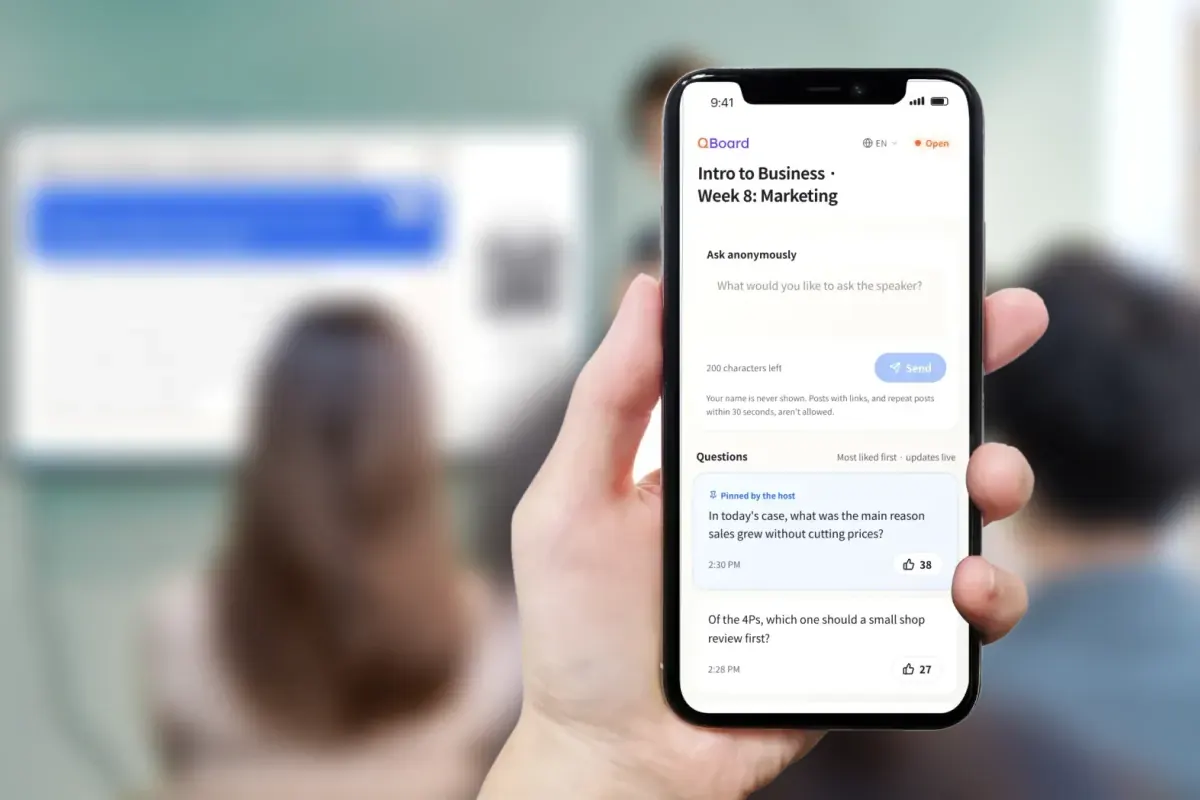
Here's how to use a Q&A tool in class, in five steps, with QBoard as the example. Other Q&A tools work in much the same way.
- Create an event before classCreate an event with the course name and week (for example, “Intro to Business – Week 8”), and you get a QR code and URL for students to join.
- Put the QR code on your first and last slidesDownload the QR code image and add it to the first and last slides of your deck. Post the URL in an LMS announcement too, so latecomers can join.
- Tell students up front that names aren't shownAt the start of class, briefly explain how to send questions and that their names won't be shown.
- Give students a minute to write at each breakStop at natural breaks in your slides or board work and give students one minute to write their questions.
- Answer the most-liked questions, and save the rest for next classIn the last few minutes, answer questions starting with the most-liked. Pick up any you didn't get to at the start of the next class.
For step 3, keep what you say short, so you can read out the same lines every time.
Today I'm taking questions from your phones. Scan the QR code on the slide, and you can send a question without giving your name. Basic questions are especially welcome, so if anything isn't clear, just send it. Like other people's questions, and I'll answer the most-liked ones first.
A minute right after an explanation lets students write their questions while they're still fresh. When questions start building up, put the projector screen up and go through the questions, sorted by likes, together with the class. It also helps to decide on your lines for steps 4 and 5 in advance.
Let's stop here for a moment. If a term or formula I just explained tripped you up, send it from your phone in the next minute. If someone has already asked the same thing, a like is enough.
The most-liked question is: “I don't get the difference between [X] and [Y].” It looks like a lot of you got stuck on the same point, so let me go over it again.
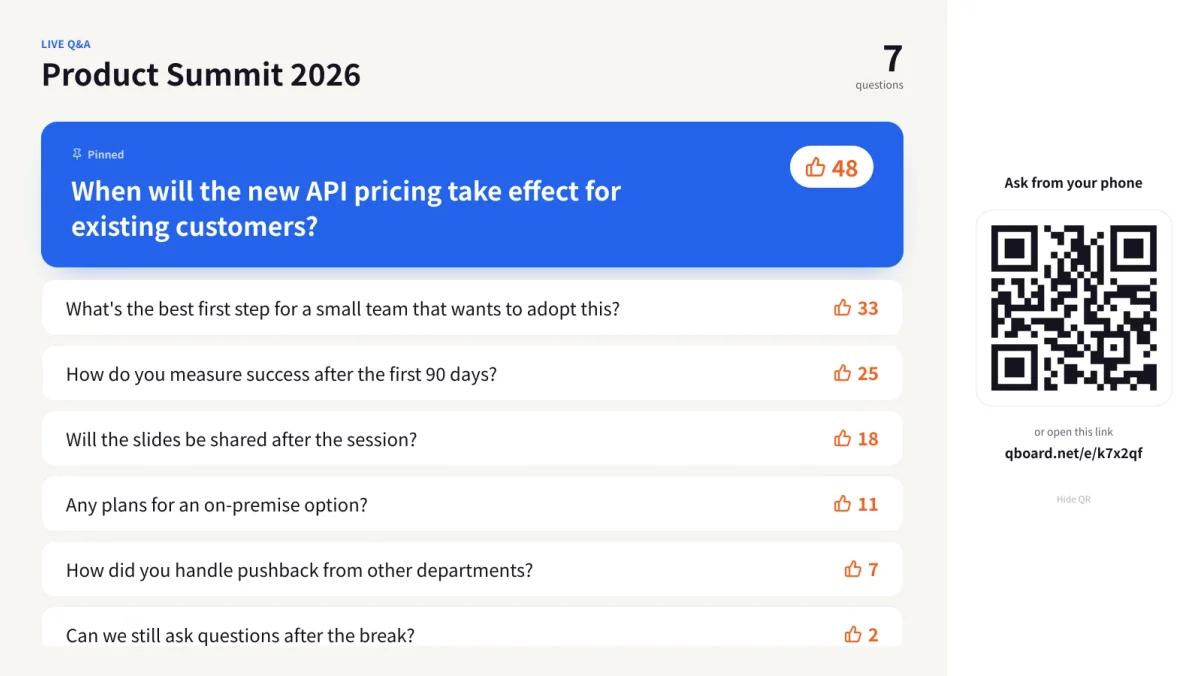
Screen: QBoard's projector view
With QBoard, students need no app and no sign-up. They scan the QR code and send questions from their phone's browser. Not even the instructor's screen shows who asked. The projector screen updates automatically every 5 seconds, and each event runs for 4 hours from when you press Start, so even two 90-minute classes back to back fit in one event. You can pin a question you want to answer first so it stays at the top. The screens follow each device's language, in 16 languages including English, Chinese, Japanese and Korean, and students can write questions in any language. That makes it easy to use in classes with international students.
If you make your slides in Google Slides, add the free Chrome extension “QBoard for Google Slides” to Chrome on the computer you present from. Then paste the event URL on the slide where you take questions. When the slideshow reaches that slide, the live question list appears on it, and the next slide goes back to normal. PowerPoint isn't supported, so if you teach with PowerPoint, switch to the browser tab with the projector screen instead.
Each event takes up to 1,000 participants and costs $19, with no monthly fee. The question list stays viewable after class, so you can use the questions you didn't answer to prepare the next class. When there are too many questions to answer in class, answer just the top few by likes. Reply to the rest at the start of the next class or in an LMS announcement. Set things up this way, and even in a large lecture hall, students can tell you what they didn't understand without raising a hand.
Free Real-Time Question Apps for Class: How to Choose

When you choose a Q&A tool for class, check three things: whether your class size fits in the free tier, whether students can join without signing up, and whether you can put questions on the screen. Some tools let in only up to 100 people for free, so for a large lecture, check the participant limit first.
Free limits and pricing for Slido, Mentimeter and others
Slido has education plans just for teachers at schools and universities. The free Basic plan lets up to 100 people join each session. The paid Teacher plan is an annual plan with up to 1,000 participants, and it adds question moderation, so you can check questions before they appear. Prices depend on your country, so check slido.com/pricing for yours. Students need no account and no app, and they join with a QR code or event code, so it's easy to explain in class. To get started, see how to use Slido.
Mentimeter's free plan has no participant limit for accounts created after November 4, 2026. However, you can view only a limited number of results after class. Education pricing starts at $8.99 per presenter per month for Basic (billed yearly, before tax). For details, see Mentimeter pricing and free plan limits.
Google Forms is free, but sorting questions and putting them on the screen is manual work. It suits collecting questions after class and answering them in the next one better than answering during class.
QBoard has a free trial for up to 30 participants and 60 minutes that you can use as many times as you like. A real class costs $19 per event, with up to 1,000 participants. There's no monthly fee, so it suits sessions you run only a few times, like orientations, guest lectures, or a handful of large lectures a term. Used for a weekly class, though, 15 sessions come to $285. If you teach with it often, an annual plan such as Slido's Teacher plan works out cheaper.
Ground Rules So Anonymous Questions Don't Derail Your Class

With anonymous questions, you might worry about off-topic posts or hurtful comments. Setting out ground rules for questions in the first class puts your mind at ease.
- Please send questions related to the course content.
- Posts that hurt others will be deleted.
- If someone has already asked the same thing, like it instead of posting a new one.
Before you use a tool in class, also check whether you can delete or hide posts. QBoard automatically blocks posts that contain URLs and repeat posts within 30 seconds, and you can hide or delete questions from the instructor's screen.
With a tool like QBoard, where names don't appear even on the instructor's screen, you can't find out who wrote what. If a problem post comes in, the practical response is to hide it without reading it out and remind the class of the rules next time. Personal matters such as grades or absences don't suit anonymous questions. Tell students in the first class to raise those by email or LMS message, so they know where to go.
If you want to check every question before it goes on the screen, choose a tool with question moderation. Slido offers it on the paid Teacher plan, and Mentimeter on paid plans such as Pro. If you stay on a free plan, hide unwanted posts after they arrive.
Collecting Questions in Online Classes and Outside Class

If you teach online with Zoom, you can take anonymous questions with its Q&A feature. Q&A in meetings is available on Zoom Workplace Business or higher, or on education accounts. Turn on “Allow anonymous questions”, and not even the host sees who asked. If you let all participants see the questions and allow upvoting, you can also tell which questions many students want answered. For setup steps, see how to use Zoom's Q&A feature.
Microsoft Teams Q&A also lets you turn on anonymous posts in its settings. Replies and reactions to anonymous questions aren't anonymous, though, so turn reactions off if that's a concern.
For questions outside class, an LMS discussion board, Google Classroom or Google Forms works well. utelecon also suggests places like these, or a chat app, for on-demand classes and outside class, and notes that some students hesitate to ask by email. A QBoard event runs for 4 hours from Start, so for questions that come up after students watch a recording, post a form link next to the video. Students can then send a question whenever one comes to mind.
Summary: Let Students Ask Anonymously from Their Phones
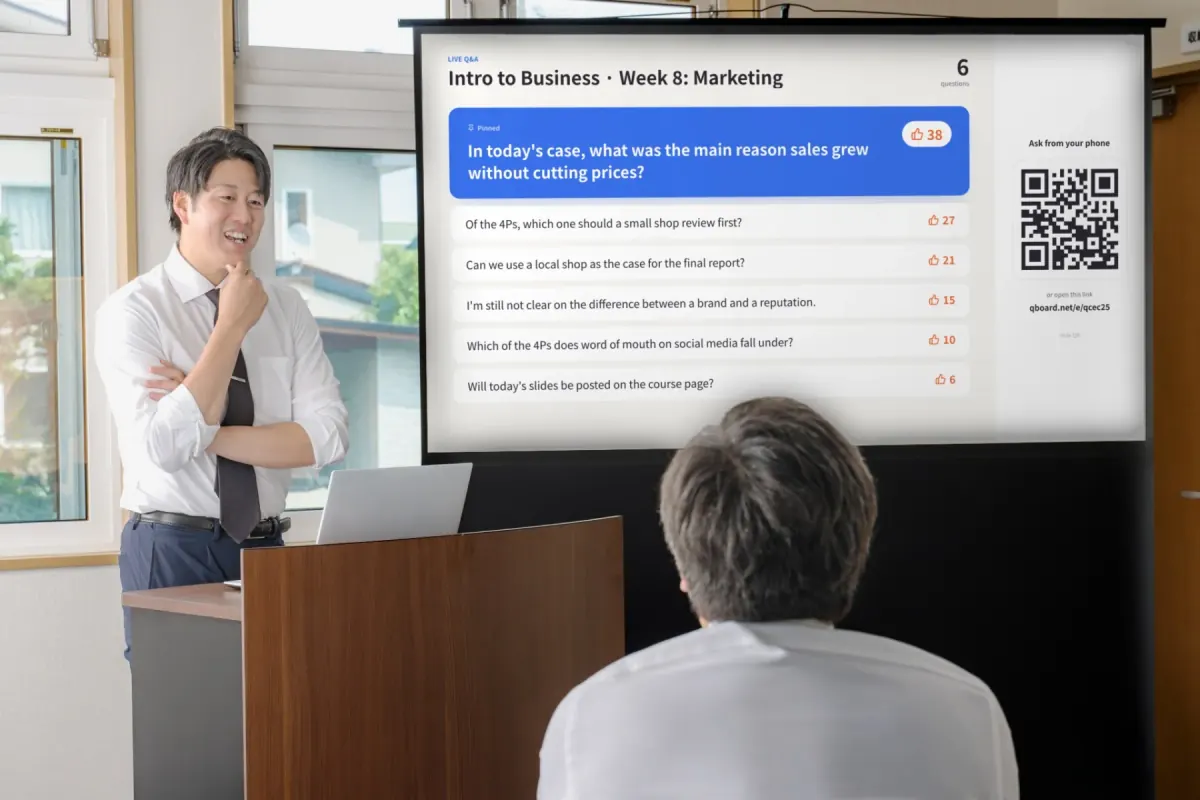
To collect anonymous questions in class, try a Q&A tool that lets students scan a QR code and send questions from their phones without giving their names. You can answer on the spot during class, and the likes show you where students got stuck.
Start by adding a QR code slide to your next class and saying at the start, “Your names won't be shown.” Signing up for QBoard is free, and you can use the free trial for up to 30 participants and 60 minutes as many times as you like. Before class, send a question from your own phone and check how it looks on the screen, following the same steps as on the day.
Students need no app and no sign-up, and ask anonymously from their phones. The most-liked questions come first, so you can quickly pick which ones to answer in the time left.
Try it freeFree trial: up to 30 participants for 60 minutes, as many times as you like. Real events: $19 each, up to 1,000 participants