What Is Mentimeter? Pricing, Free Plan Limits and How to Use It

You want to use Mentimeter at your next training session, but you're not sure what the free plan covers or how to get started.
If you sign up now, Mentimeter's free plan has no limit on participants. But you can see only a limited number of results after your sessions, and the presenter screens come in just four languages.
This article covers Mentimeter's pricing, the free plan limits, how to use it, and which languages it supports.
What Is Mentimeter and What Can It Do?
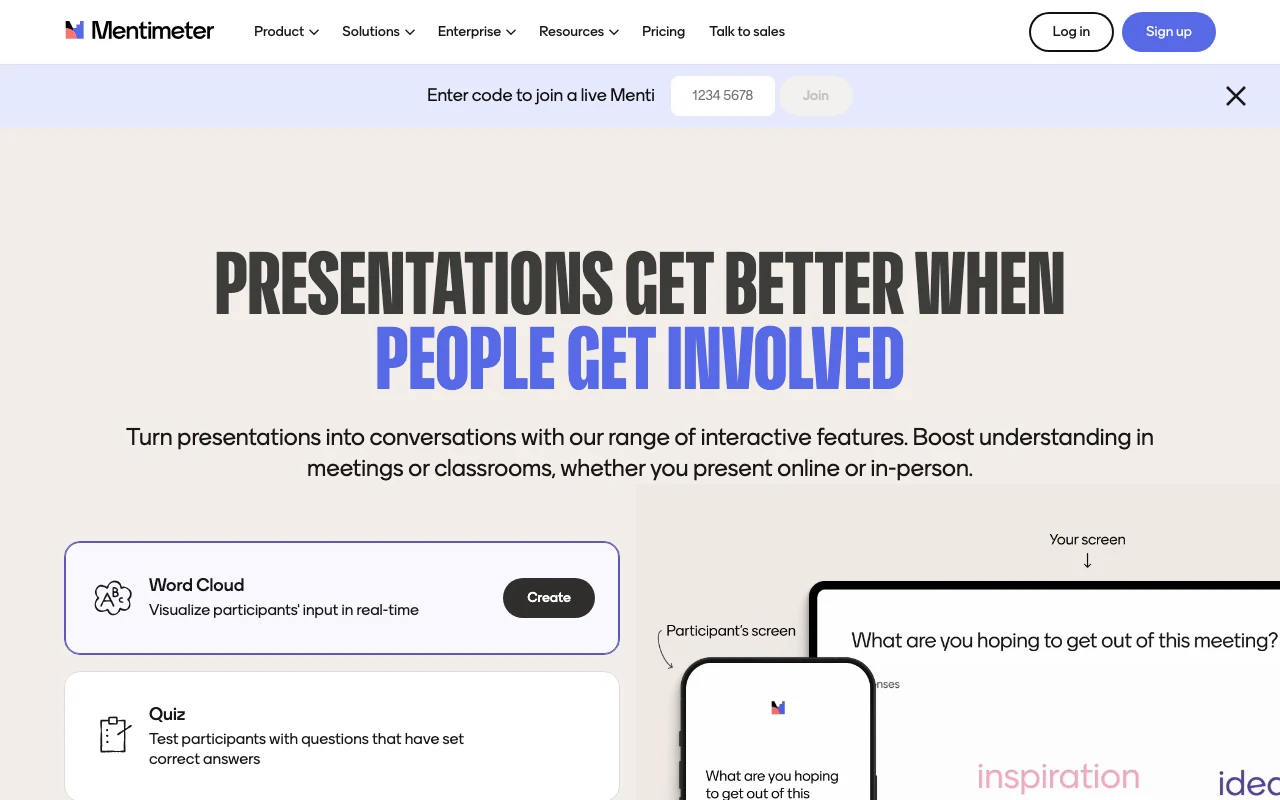
Screenshot: Mentimeter official website (November 23, 2026)

Mentimeter is a web service that lets you add polls, quizzes and Q&A to your presentation slides. Your audience answers from their phones. It started in Sweden in 2012 and is run by Mentimeter AB in Stockholm. According to its website, it has more than 500 million users worldwide.
The presenter builds a presentation, called a “Menti”, on a computer and shows it on the screen. When participants answer on their phones, the results appear on the screen right away. That makes it useful for training in a meeting room and for online classes alike.
Polls, quizzes and Q&A in Mentimeter
Slides fall into three groups: question slides that collect answers, quizzes where people compete for points, and Q&A slides that take questions. The main types are:
- Multiple choice: people pick from options you prepare
- Word cloud: shows participants' words on the screen live
- Open text, scales and ranking: collect opinions and ratings
- Quiz: scores answers and shows the winner on a leaderboard at the end
- Q&A: collects participants' questions, sorted by upvotes
Apart from quizzes, question slides collect answers without scoring them. You can also add slides with just text, images or video, so you can build your whole presentation in Mentimeter.
Mentimeter Pricing Plans

Mentimeter has four plans: Free, Basic, Pro and Enterprise. Paid plans are charged per presenter, meaning each person who creates slides.
| Plan | Per month (billed annually) | Participants per month | Key differences |
|---|---|---|---|
| Free | $0 | Unlimited (accounts created after November 4, 2026) | Limited results after the session |
| Basic | $11.99 | Unlimited | Export results, import slides |
| Pro | $24.99 | Unlimited | Q&A moderation, co-editing |
| Enterprise | Contact sales | Unlimited | For organizations with 10 or more presenters, single sign-on |
Sources: Mentimeter pricing page and Help Center (checked November 24, 2026). Prices in USD, excluding tax, per presenter per month
Paid plans are billed annually as standard, and the table shows the yearly price divided by 12. The FAQ on the pricing page says Basic is the only plan you can also pay monthly. Pro and Enterprise can't be paid one month at a time.
Teachers and students get education pricing: Basic is $8.99 and Pro is $14.99, both per presenter per month, billed annually. If you're using it in university classes, also see our guide on how to collect anonymous questions in class.
If you only need it for one big event a year, there's also a one-time “Conference” plan. For 30 days from purchase, you get every paid feature with no limit on participants. Contact Mentimeter for the price.
Mentimeter Free Plan: What's Included and the Limits

Mentimeter changed its free plan on November 4, 2026. Accounts created since then have no participant limit, but you can see only a limited number of results after your sessions. Once you hit that limit and close the presentation, the results of question and quiz slides can no longer be viewed in the editor. The answers aren't deleted, though. If you upgrade to a paid plan, you can open the results of all your past sessions.
Accounts created before November 4 keep the old rules: up to 50 participants in total per month. Once a month, though, a single presentation can keep going for 8 hours after it passes 50 participants, however many people join. The count resets every month, starting from the date you created your account.
So if you sign up now, you can run a live event without worrying about headcount. But to see all your results afterwards, you need a paid plan. Here's what you can do for free and what needs a paid plan:
What the free plan includes
- Unlimited presentations (up to 200 slides each)
- Almost all question types
- Q&A slides
- The PowerPoint add-in
- The Zoom and Microsoft Teams apps
What needs a paid plan
- Seeing all results after the session
- Exporting results to Excel
- Q&A moderation (Pro and up)
- Collecting participants' names (Pro and up)
- Embedding Google Slides (Pro and up)
Sources: Mentimeter Help Center, “What is included in the free account?” and other articles (checked November 24, 2026)
The PowerPoint add-in and the Zoom and Teams apps work on the free plan
The PowerPoint add-in, installed from Microsoft AppSource, lets you insert Mentimeter slides into a PowerPoint deck. You need an Office 365 account to install it. It works only in the desktop version of PowerPoint, not in PowerPoint Online in the browser. Also, one PowerPoint file can hold slides from only one Menti. You can't mix in slides from a different Menti.
In Zoom, open Mentimeter from “Apps” during a meeting, and participants can answer in the same window without you sharing your screen. Your Zoom admin has to approve the app first. In Teams, the app doesn't work for guests who join without signing in, and it doesn't show up in Teams recordings.
How to Use Mentimeter: Getting Started as a Presenter

Participants don't need an account, but as the presenter you create a free account and then build your presentation. It takes five steps.
- Create a free accountClick “Sign up” at the top right of mentimeter.com.
- Create a new MentiOn the dashboard, click “New Menti +” and choose “Live”. Start from a blank presentation, or use a template or AI to make a first draft.
- Add slidesClick “+ New slide” at the top left, choose a type such as word cloud or multiple choice, and type your question.
- Present with “Start presentation”The button at the top right switches to full screen. Move through slides with the arrow keys, or with the menu that appears when you move the mouse to the bottom left.
- Review the resultsAfter the session, look back at the results in the editor. The free plan limits how many you can see, and exporting to Excel needs Basic or higher.
To check what people learned at the end of a training session, quiz slides are handy. Participants either pick from options or type in their answer. You can add a countdown, then announce the winner on the leaderboard at the end.
For your first session, answer as a participant on your own phone before the event and check how it looks on the screen. If the number of slide types feels overwhelming, start with two: a word cloud and a multiple choice.
How to Join Mentimeter: menti.com and the Code

Participants join a Menti in one of three ways: enter the code at menti.com, scan the QR code, or open the participation link. They need no app and no account, and they can answer from a phone, a computer or a tablet.
| How to join | What participants do | Expiry |
|---|---|---|
| menti.com and code | Open menti.com in the phone's browser and enter the code the presenter gives | Replaced by a new code after 48 hours without use |
| QR code | Scan the QR code on the venue screen or handout with the camera | Doesn't change |
| Participation link | Tap the link in the invitation email or similar | Doesn't change |
Source: Mentimeter Help Center (checked November 24, 2026)
When the code changes, your presentation and the results you've collected stay as they are. But any code you put in invitation emails or handouts stops working. If you send joining details in advance, use the QR code or the link. To keep the same code for longer, extend it by 2, 7 or 14 days from “Share” at the top left of the editor. Participants can also join by entering the code in the field at the top of the mentimeter.com home page and clicking “Join”.
Can You Use Mentimeter in Other Languages?

You can switch the participant screens to another language, but the presenter screens have only a few options.
Set the participant language under “Language preferences” in the editor's “Settings”. When participants join, most buttons and messages then appear in that language. The questions and answer options on your slides show exactly what you typed, so write them in your audience's language and people can answer without confusion.
The website and editor that presenters use, on the other hand, come in only four languages: English, German, Spanish and Brazilian Portuguese. The official Help Center is in the same four. If you're not comfortable working in any of them, do a full run-through before the event, from building the slides to presenting them.
Mentimeter Q&A vs. a Dedicated Q&A Tool
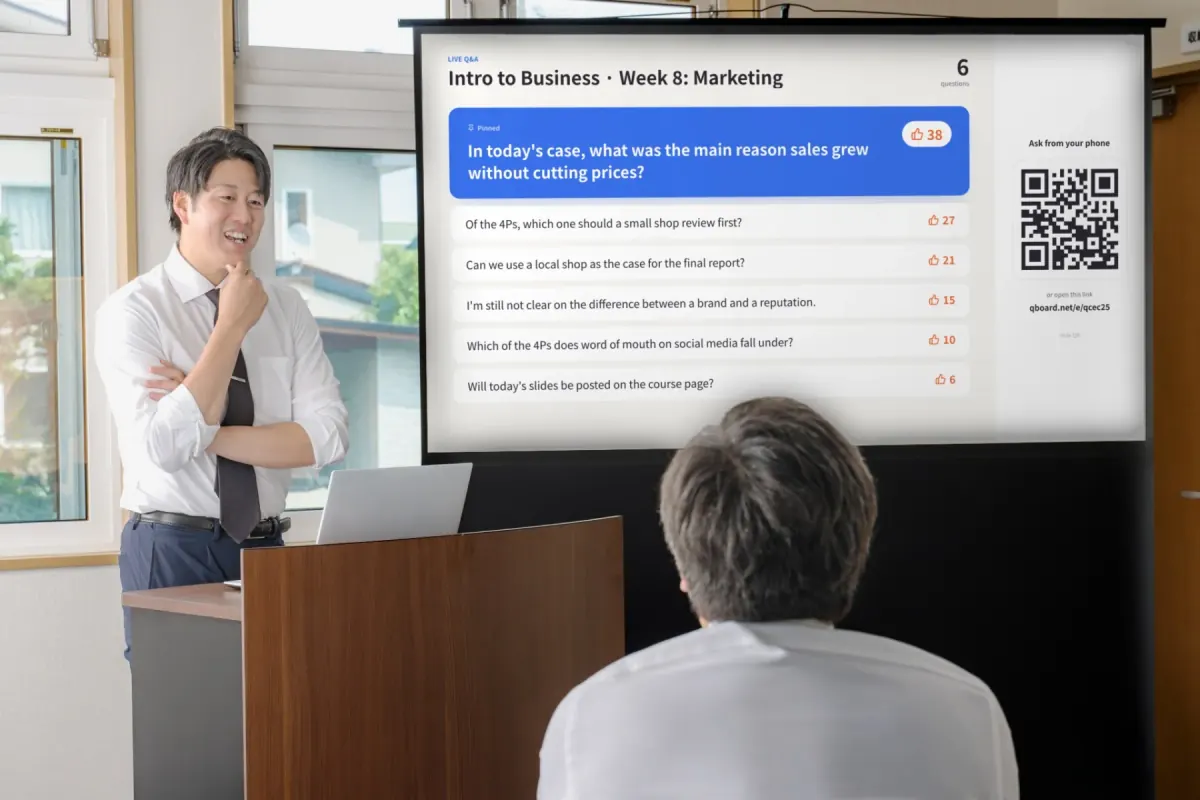
In Mentimeter's Q&A, questions arrive anonymously by default, and the ones with the most upvotes rise to the top of the presenter's screen. You can take questions only while the Q&A slide is showing. Or turn on “Enable Q&A” in the participant settings so people can ask from any slide. Moderation, where you review questions before they're shown, is only on the Pro, Conference and Enterprise plans.
Mentimeter's Q&A works on the free plan, so for some events it may be all you need. If you only need to collect questions and want the organizer screens in your own language too, consider QBoard. All its screens, including the organizer's, come in 16 languages and switch automatically to match each device's language. Like Mentimeter, it collects questions anonymously and sorts them by likes. There's no monthly fee: $19 per event for up to 1,000 people.
Inside your slides, Mentimeter works through its PowerPoint add-in, and QBoard through its Google Slides extension. QBoard doesn't support PowerPoint at the moment. If you want to liven up the room with word clouds and quizzes, Mentimeter is the better fit.
Summary: Create One Menti for Free and Try It

Mentimeter is a presentation tool where your audience answers polls, word clouds and Q&A from their phones, and even the free plan lets you run live sessions without worrying about headcount. But new free accounts can see only a limited number of results after the session. If you want to see all your results afterwards, consider Basic ($11.99 a month, billed annually).
Start by creating one Menti for free. Answer it from your own phone at menti.com and check how it looks on the screen. If you only need to collect questions for a Q&A, with screens in your own language, you can also try QBoard free as many times as you like with up to 30 participants for 60 minutes.
Show a QR code, and your audience can ask questions anonymously from their phones. The organizer screens come in 16 languages too, and you can try it free as many times as you like with up to 30 participants for 60 minutes.
Try it freeNo monthly fee. $19 per event for up to 1,000 people