How to Use Slido: Joining, Q&A, Polls and Free Plan Limits

Your manager says, “Use Slido to collect questions at the next training session.” You've never used it and don't know where to start.
The short version: the host creates one slido with a free account, and participants join from their phone's browser with a code or a QR code.
This article covers how the host gets started, how participants join, how to run Q&A and polls, and what to watch for on the free plan.
What Is Slido and What Can It Do?
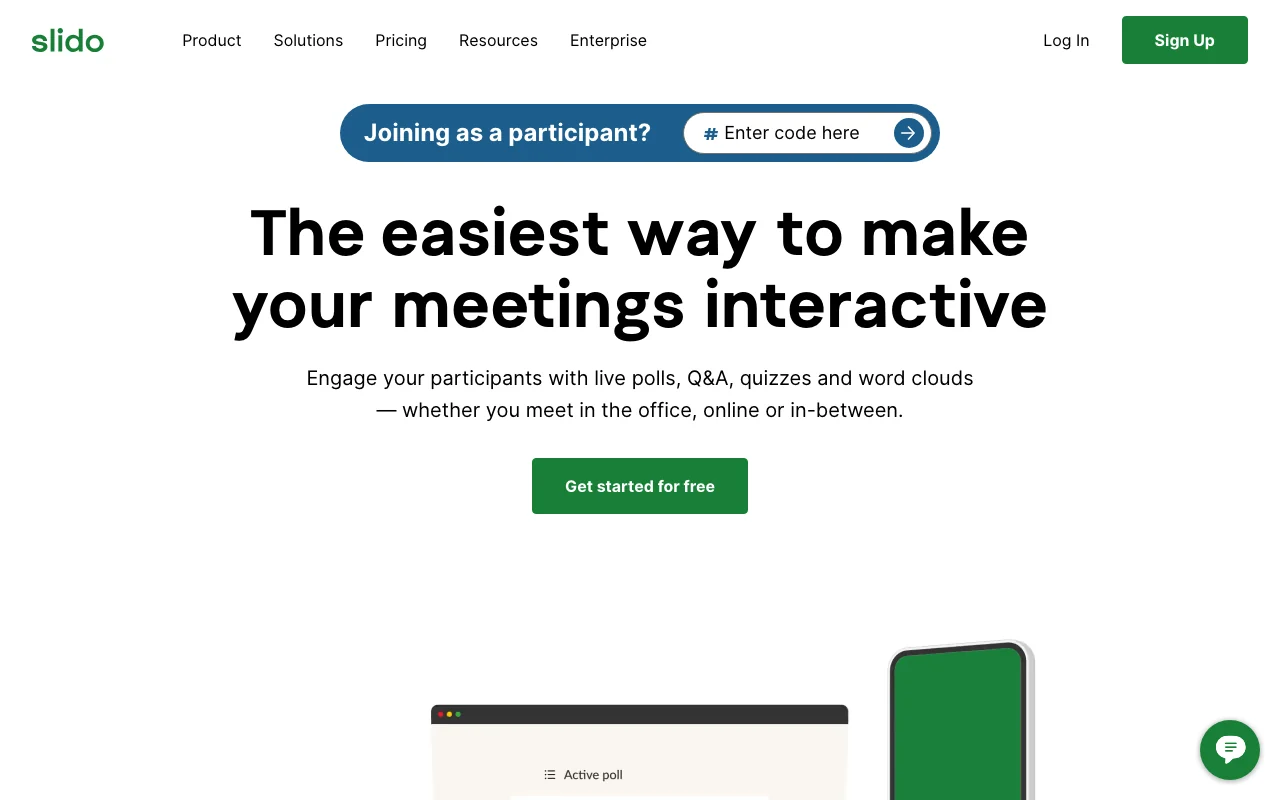
Screenshot: Slido official website (November 23, 2026)

Slido is a web service for collecting questions and running polls at meetings, seminars, classes and webinars. It's part of Webex, Cisco's video meeting service, and it works for both in-person and online events.
For each event, the host creates one “slido” and adds a Q&A and polls to it. Participants join with the code or QR code you give them. They don't need an account or an app. Slido has two main features:
- Q&A: participants send questions and upvote other people's questions
- Polls: multiple choice, word cloud, open text, ranking, rating and quiz
In the Q&A, the most-upvoted questions rise to the top. Slido also works with PowerPoint, Google Slides, Zoom and Microsoft Teams, so you can run polls right inside your presentation slides. On pricing, you start on the free Basic plan as soon as you sign up.
How to Use Slido: Getting Started as a Host

As the host, you sign up, create a slido, and add a Q&A and polls. That's all the setup you need. You do everything in a computer browser at slido.com.
Creating a Slido account and logging in
Go to slido.com, click “Sign Up” at the top right and fill in the details. Confirm your email address from the message you receive, and your account is ready to use. New accounts start on the free Basic plan, so try everything out before you spend any money. Next time, log in with “Log In” at the top right.
Creating a slido and adding Q&A and polls
- Click “Create a slido”Choose your event dates, enter a name, and click “Create slido”. After your first one, create new slidos with “+ Create slido” on the dashboard.
- Add a Q&AClick “Add” under “Audience Q&A” to start taking questions. Check the settings, then close “Q&A options”.
- Add pollsPick a poll type from “Add new interaction” and type your question. Your changes save automatically.
- Set the code and language in “Settings”Change the slido code to something easy to remember, or invite co-hosts who'll help run the event. If your audience doesn't use English, set the language they'll see under “Basic information” > “Show additional settings”.
- Test it as a participantStart a poll, answer it yourself with “View as participant”, and check how it looks in “Present mode”. Clear the test votes with “Reset results” in the three-dot menu.
Your host screens are in English at first. To change that, click your avatar at the top right, click “Edit” next to your name, choose a language under “Language”, and save. This only changes your own screens. The language participants see is set separately for each slido, as in step 4.
How to Join Slido: Code, Link or QR Code

Participants join Slido with a code, a participation link or a QR code. None of them needs an account, so share whichever fits how you invite people.
| How to join | What participants do | When it works |
|---|---|---|
| Code | Open slido.com in a browser and enter the code after the “#” | Only during the dates the host set |
| Participation link | Open the link sent by email or chat | Also outside those dates |
| QR code | Scan it with the phone camera | Also outside those dates |
Source: Slido Help Center, “How to join Slido as a participant” (checked November 24, 2026)
Entering the code at slido.com is the most common way to join, but the code only works during the dates the host set. If you want to take questions before the event, send out the link or QR code ahead of time. You'll find both under the green “Share” button at the top right of your slido.
You can paste the link straight into a calendar invite, an email, or a Slack or Microsoft Teams chat. For the QR code, “Share” > “Download QR code” saves it as an image, so you can print it on handouts or signs at the venue. While Present mode is on the screen, the QR code and the code stay visible the whole time.
The Slido participant app ended in March 2026
Slido used to have a phone app for participants, but it was discontinued on March 30, 2026. It's gone from the app stores and can't be downloaded. On a phone, participants open slido.com in the browser and enter the code, or scan the QR code. Add “No app needed” to your invitation, and nobody will waste time searching the app store.
Running Slido Q&A and Polls on the Day

On the day, put Present mode on the venue screen and run the questions and polls from your own laptop or phone. The order is simple: show the screen, answer questions, run polls.
Show the QR code and questions in Present mode
Open your slido and click the green “Present” button at the top right. The screen to project opens in a new tab. To go full screen, press F11 on Windows or Command+Shift+F on macOS. The QR code and the code stay on the screen, so latecomers can join on the spot.
You control everything from the control panel at the bottom left of the screen. You can also log in to slido.com on your phone and run it from there. Or copy the Present mode link and have your AV team show it on a separate screen.
Taking and answering questions in Slido
By default, Q&A questions arrive anonymously, and participants can choose to add their name. The more upvotes a question gets from other participants, the higher it sits. The moderator can read them out from the top, so the questions most of the room wants answered come first. Highlight the question being answered so it stands out on the screen, then mark it as answered and move on.
To stop taking questions, “close” the Q&A. The questions already sent stay visible, and only new questions are blocked.
After the event, go back over the questions you didn't get to. Exporting the question list to Excel is only on paid plans, so if you ran the event on the free Basic plan, copy the questions down from your host screen.
Starting a poll and showing the results
Start a poll you've already created from “My interactions”, and stop it when you want to close voting. The results appear straight away on the Present mode screen. Note that since February 20, 2026, you can no longer add new polls from the Present mode control bar. So create your polls before the event, from the host screen or through an integration such as PowerPoint.
How to use Slido in PowerPoint and Google Slides
If you don't want to keep switching between your slides and Slido, use the PowerPoint or Google Slides integration. Both work on the free Basic plan.
For PowerPoint, download “Slido for PowerPoint” from slido.com and install it on every computer you'll present from. Once you sign in, a Slido button appears on the Home tab, and you can insert polls, Q&A and joining instructions as slides. Poll slides start automatically when you reach them in your presentation, so there's no switching screens. It runs on Windows 10 22H2 or later with an up-to-date PowerPoint 2016 or later, or on macOS 14 or later with PowerPoint 2021 or later.
For Google Slides, install the add-on from the Google Workspace Marketplace, then open “Slido for Google Slides” from the Extensions menu. The add-on is installed per Google account, so present from that same account.
Can't Join Slido? Common Problems and Fixes

If participants can't get in, or Slido won't work inside Zoom or Teams, find the closest match in the table below.
| What's happening | Likely cause | Fix |
|---|---|---|
| The code doesn't work | It's outside the dates the host set | Share the participation link or QR code |
| Can't find the phone app | The participant app ended on March 30, 2026 | Open slido.com in a browser |
| No QR code on the projected screen | The QR code is turned off in the settings | Turn on “Join slido via QR code” in Settings |
| Can't control Slido in Zoom | You joined from a browser, or a co-host is running it | The host runs it from the Zoom desktop app |
| Zoom participants can't open Slido | They haven't installed Slido for Zoom | Ask them to install it, or to join with the link or QR code |
| Can't add Slido to a Teams meeting | It's a channel meeting started with “Meet now” | Add it from the edit screen of a scheduled meeting |
| Can't use Slido in a Teams town hall | Town halls aren't covered by the Teams integration | Have people join at slido.com with the link or QR code |
| No Slido button in PowerPoint | The app isn't installed on that computer | Install it on each computer and sign in |
Sources: Slido Help Center and Slido official website (checked November 24, 2026)
To use Slido in Zoom, the host's Zoom desktop app must be version 5.15.7 or later. Slido doesn't work in events run on Zoom Events or in Webex meetings with end-to-end encryption. In case some people can't get in at the venue, share both the QR code and the link. That way they can use whichever one works.
Slido Free Plan: What You Can Do and the Limits

As soon as you sign up, you can use Slido on the free Basic plan, with no time limit. Everything in this article, from creating a slido and joining to Q&A and the PowerPoint integration, works on the free plan.
The catch is the number of people: a free slido allows up to 100 participants. For bigger events, or if you want to review questions before they appear on screen, you need a paid plan. The article below explains what the free plan covers and what the paid plans cost.
Slido Alternatives for Audience Q&A
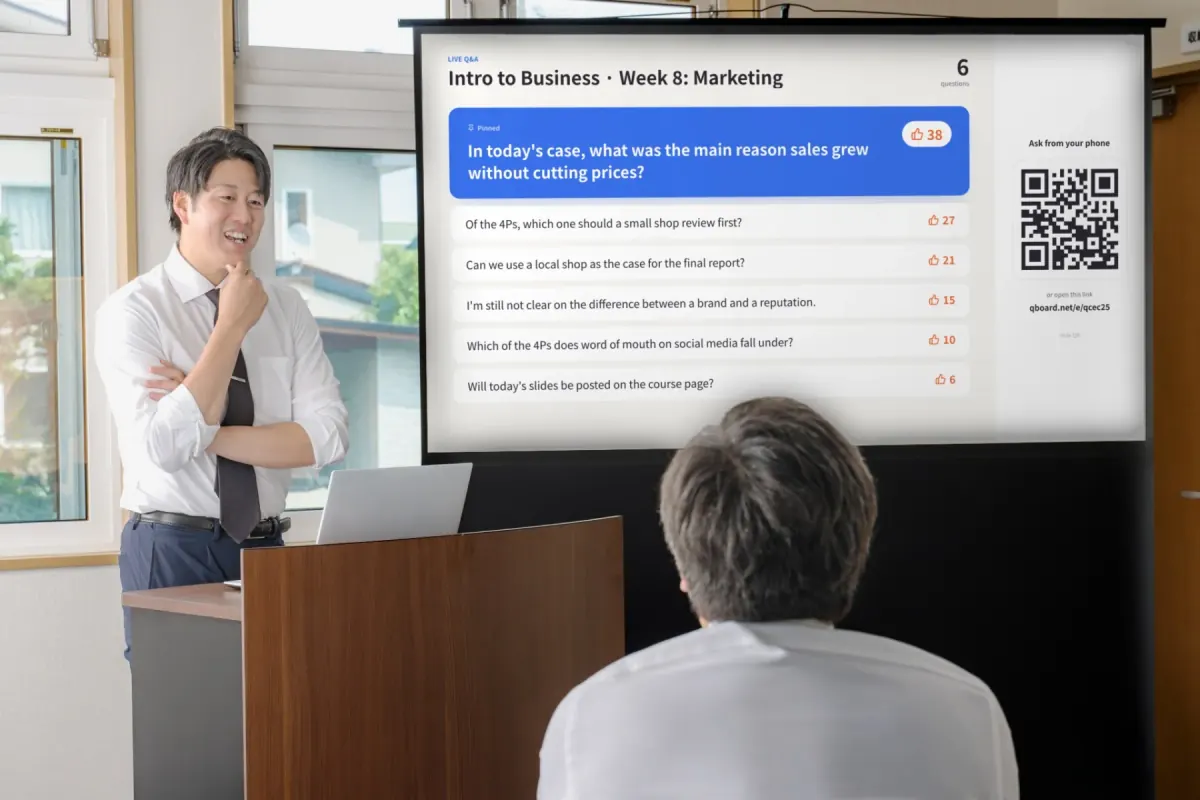
Slido is a good fit if you want polls and quizzes too, or want to run polls inside your PowerPoint slides. But if you only need to collect questions for a Q&A, and you expect more than 100 participants, compare it with a Q&A tool you pay for per event. With Slido, even a one-off event needs a paid plan once you go over 100 people.
QBoard, for example, has no monthly fee. It costs $19 per event, for up to 1,000 participants and 4 hours from when you press Start. Questions are always anonymous, and names aren't shown even on the organizer's screen. Like Slido, it sorts questions by likes, and participants join with a QR code, with no app and no sign-up. It has no polls or quizzes, though, so it suits events where you only need the Q&A.
For slides, QBoard works with Google Slides only. With the free Chrome extension “QBoard for Google Slides”, the live question list appears when your slideshow reaches the Q&A slide. PowerPoint isn't supported at the moment. All screens, including the organizer's, are available in 16 languages and follow each person's device language from the start.
Summary: Create One Slido on the Free Basic Plan and Try It

With Slido, the host creates one slido on the free Basic plan and shares the code or QR code, and you can collect questions and votes that same day. Participants just join in their phone's browser, so there's no app to install.
Before the event, use “View as participant” to send one question and one poll answer from your own phone, and check how they look in Present mode. If you have more than 100 participants and only need to collect questions, QBoard costs $19 per event for up to 1,000 people. You can try it free as many times as you like with up to 30 participants for 60 minutes.
Show a QR code, and your audience can ask questions anonymously from their phones. Signing up is free, and you can try it as many times as you like with up to 30 participants for 60 minutes.
Try it freeNo monthly fee. Participants need no app and no sign-up