How Long Should a Q&A Session Be? Timing, Tips, and When No One Asks

You're putting together the seminar agenda, and one line stops you: how much time should the Q&A get?
A good rule of thumb: for a 60-minute talk, plan 10–15 minutes of Q&A.
This article covers how many questions fit in 10 minutes, how to run the Q&A on the day, and what to do when no one asks.
How Long Should a Q&A Session Be? Guidelines by Event and Talk Length

For a seminar with a 60-minute talk, 10–15 minutes of Q&A is the usual guideline. Lectures, where the audience mostly listens, sometimes get a longer 20–30 minutes. Here is what speaker agencies and training companies in Japan recommend:
| Event type | Talk length | Suggested Q&A time | Source |
|---|---|---|---|
| Webinar | Up to 60 min | 10–15 min | Nikkan Sports Koshi Haken Navi |
| Talk in a 60-minute slot | 40 min (plus a 5-min buffer) | 15 min | TARNAR |
| Lecture | 60–80 min | 20–30 min | Kono Japan |
| Discussion-focused event | 50–60 min | 30 min | Nikkan Sports Koshi Haken Navi |
Sources (in Japanese): Nikkan Sports Koshi Haken Navi, a speaker-booking service, “How to make your webinar Q&A a success”; TARNAR, a guide for speakers, “How to plan Q&A time in a talk”; Kono Japan, a corporate training company, “Should you hold a Q&A after training?” (all checked November 23, 2026)
Online audiences lose focus more easily through a screen, so the advice for webinars is to keep the talk to 60 minutes or less and the Q&A to 10–15 minutes. Lectures are the opposite. Questions build up as people listen, and Kono Japan notes that many organizers set aside 20–30 minutes from the start and say so in advance. If you're unsure, give about a quarter of the total slot to Q&A. In a 60-minute slot that's 15 minutes, which matches the examples in the table.
Match the Q&A format to your audience size
The same 15 minutes plays out very differently with 30 people and with 150. TARNAR, which writes about how to structure talks, recommends changing the Q&A format by audience size. Here is a summary of that approach:
| Audience size | Best format | What to prepare |
|---|---|---|
| Up to about 30 | Raised hands. You can take questions during the talk, too | A quick “Feel free to raise your hand at any point” |
| 30–100 | Raised hands plus questions submitted in advance | A mic runner to bring the microphone to each seat |
| Over 100 | Collect questions on cards, a form or a Q&A tool, and have the moderator read them out | Someone to pick which questions to read |
Audience size bands based on TARNAR, “How to plan Q&A time in a talk”
At events with more than 100 people, raised hands alone usually means questions from a few people in the front rows. The bigger the audience, the more it helps to give people a way to write and send their questions. You'll get more out of the Q&A time.
How Many Questions Fit in a 10-Minute Q&A? Planning Your Timing

TARNAR suggests announcing the plan before the Q&A begins: “We have 15 minutes left, so we'll take three to five questions.” That works out to 3–5 minutes per question. Applied to other lengths, it looks like this:
| Q&A time | Questions you can answer | Good for |
|---|---|---|
| 5 min | 1–2 | Internal presentations, short conference talks |
| 10 min | 2–3 | Webinars of up to 60 minutes |
| 15 min | 3–5 | 60-minute seminars and talks |
| 20 min | 4–6 | 90-minute seminars |
| 30 min | 6–10 | Lectures and discussion-focused events |
Calculated at 3–5 minutes per question (based on TARNAR's “three to five questions in 15 minutes”)
How long one question takes depends a lot on the length of the question and of the speaker's answer. If you expect plenty of questions, plan one row longer than the table suggests. You're less likely to run out of time with questions still waiting.
Block out the Q&A time first
Reserve the Q&A time first, then fit the talk into what's left. That way the Q&A doesn't get squeezed on the day. For a 60-minute session, TARNAR's example splits the time like this:
- Set the total slot (60 minutes)Work backward from the time the venue or the stream ends.
- Reserve 15 minutes for Q&ATreat this as protected time, even if the talk runs over.
- Keep 5 minutes as a bufferUse it if you start late or the Q&A gets lively.
- Give the remaining 40 minutes to the talkTell the speaker ahead of time: “Your talk is 40 minutes.”
Q&A at the end, or partway through?
The default is one Q&A at the end of the talk. For small groups, or for long talks over 90 minutes, it's also worth pausing once partway through to take questions. People ask while the topic is still fresh, and you get fewer repeated questions in the final Q&A. Cut the final Q&A by the time you spent on the mid-talk one, and the total stays the same.
How to Run a Q&A Session and Call on People

Follow these five steps, and neither the moderator nor the speaker will wonder what comes next.
- Explain how to ask and how much time is leftSay how you'll take questions (“Please raise your hand” or “Send your questions with the QR code”) and how many minutes you have.
- Take questionsWith raised hands, a mic runner brings the microphone to the person's seat. With a Q&A tool, show the incoming questions on the screen.
- Hand over to the speakerIf a question is long, the moderator briefly restates it (“So your question is…”) before passing it to the speaker.
- Move to the next questionWhen the answer is done, thank the person who asked and call on the next one.
- Wrap up when time is upAnnounce “This will be our last question,” then close by thanking the speaker.
When you call on someone, point them out by seat and clothing, such as “the person in blue in the third row.” It's polite and works even when you don't know names. If the same person keeps raising a hand, it's fairer to give someone who hasn't asked yet a turn first. With a dedicated mic runner, there's less dead time between calling on someone and hearing their question.
If you're putting a Q&A tool on the screen, also decide in advance how you'll switch from the slides to the question screen. If the speaker presents with Google Slides, install QBoard's Chrome extension “QBoard for Google Slides” on the presenting computer. When the slideshow reaches the Q&A slide, it switches to the questions that have come in.
Agree on these with the speaker in advance
The day of the event is too late to work out the Q&A plan with your speaker. Nikkan Sports Koshi Haken Navi also points out that some speakers would rather not take questions at all. When you meet beforehand, confirm these four things:
- How long the Q&A is, and how many questions to take
- How questions are taken (raised hands or a Q&A tool)
- How to handle difficult questions
- How you'll follow up on questions you don't get to
For lines a moderator can read out as they are, see our Q&A moderator script and example phrases.
What to Do When No One Asks Questions, and How to Collect Them in Advance
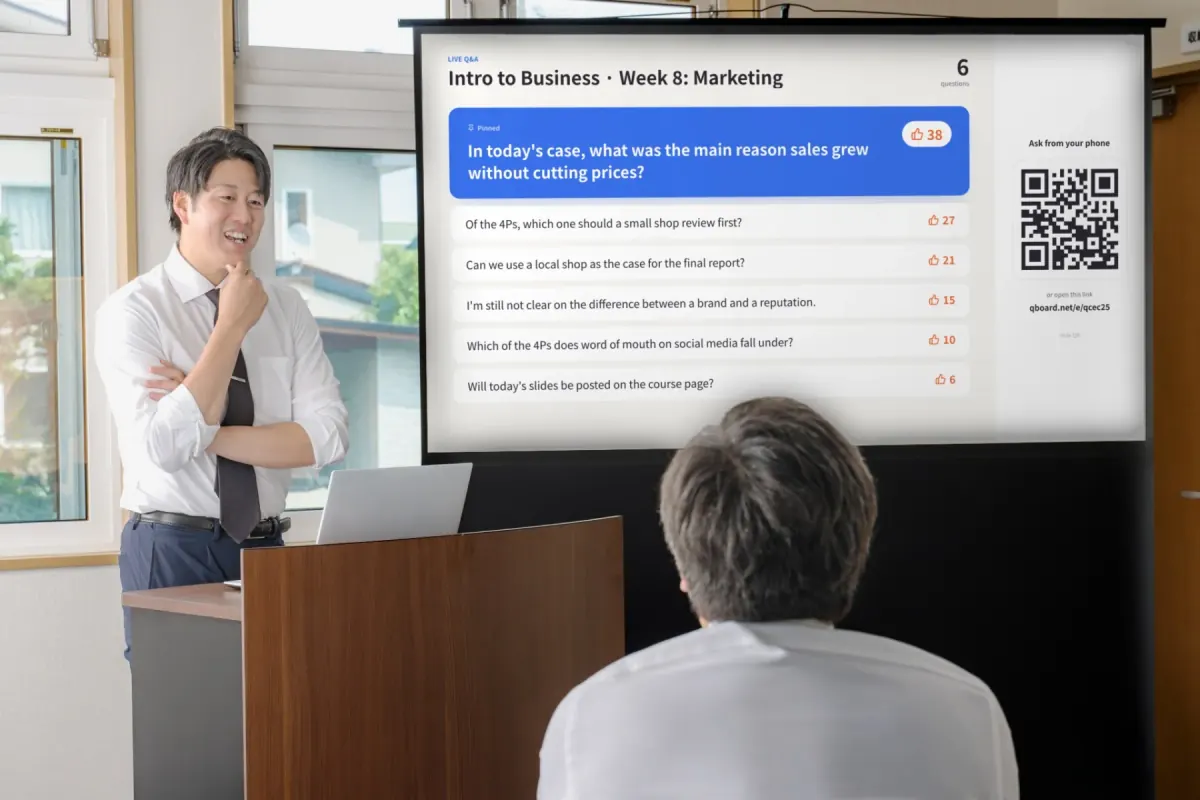
Silence doesn't mean people have no questions. They hold back because raising a hand makes them stand out, because no one wants to go first, and because they worry the question will sound off the mark. So the fix has two parts: give people time to think of a question, and give them a way to ask without raising a hand. Here's what you can do beforehand and on the day.
Before the event: collect questions in advance and prepare the first one
Add a field such as “What would you like to ask the speaker?” to your registration form, and questions will come in before the event. On the day, the moderator picks one and reads it out as the first question, so the Q&A doesn't open with silence. It also helps to agree with the speaker on two or three common questions to have ready.
At internal events, you can also ask a colleague from the same team to ask the first question. Partway through the talk, ask “Is there anything so far that wasn't clear?” and give people a minute to write a question down. When the Q&A starts, they'll find it easier to speak up.
On the day: let people ask anonymously with a Q&A tool, no hand-raising needed
To beat the silence on the day, try an audience Q&A tool that lets people send questions anonymously from their phones, without raising a hand. They scan the QR code on the screen, the question page opens, and no names are shown. People can also like other people's questions, so anyone too shy to ask can back a question they share.
If you're combining it with raised hands, add a line such as “Basic questions are welcome” or “If you'd rather not raise your hand, use the QR code.” You'll get questions from both. To choose a tool, see the article below, which compares prices and participant limits.
When the Q&A Is Short on Time or Runs Long

If time looks tight, say this at the start of the Q&A: “If we don't get to your question, we'll send you an answer after the event.” People know their questions won't go to waste, so cutting off when time runs out leaves less frustration.
When one person's question goes on and on, the moderator can sum up the point (“So your question is about…”) and pass it to the speaker. That keeps things on track. If the speaker tends to give long answers, ask beforehand for about 2–3 minutes per question. That gets you closer to the numbers in the table.
If you're using a Q&A tool, answer the most-liked questions first, then go through the full list after the event and answer the rest later. If there's truly no room for a Q&A, skip it. Collect questions in a post-event survey instead, and send the answers along with the slides.
When you get a difficult or off-topic question
Questions that go deep into someone's personal situation, or that stray from the topic, eat up time if you try to answer them on the spot. The moderator can step in (“The speaker will be happy to talk with you after the session”) and move on to questions that help everyone. TARNAR also recommends that the moderator and speaker agree in advance on how to handle questions like these.
An anonymous Q&A tool may also get spam or off-topic posts. QBoard automatically blocks posts that contain URLs and repeat posts within 30 seconds. The organizer can also hide any post with one tap from the admin screen.
Webinar and Online Q&A: Timing and How to Run It

For webinars, Nikkan Sports Koshi Haken Navi recommends a talk of up to 60 minutes plus 10–15 minutes of Q&A. You can take questions in the chat, through the Q&A feature in Zoom Webinars, or by sharing the link to a Q&A tool. Whichever you use, have someone other than the speaker read the questions out. Then the speaker isn't left in silence, searching the screen.
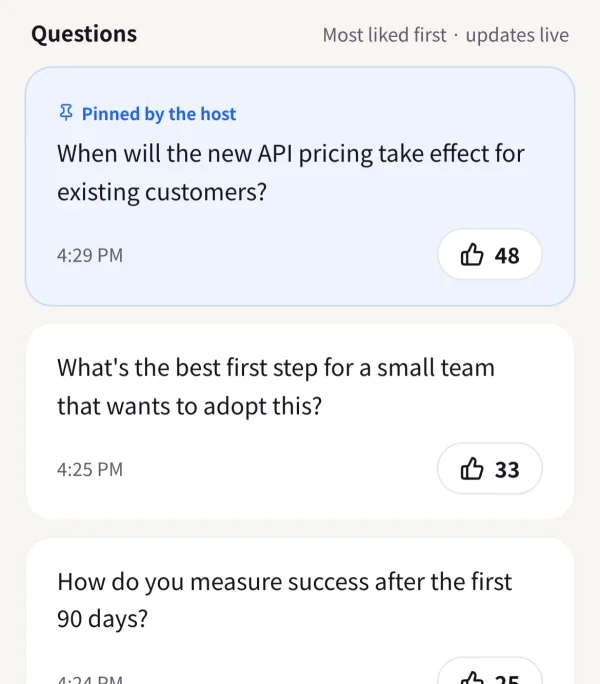
Screen: QBoard participant view
Online, questions arrive as text, so allow time for the moderator to read them out. TARNAR notes that pausing once for questions partway through the talk keeps people focused better than taking them all at the end.
For hybrid events, with people both in the room and online, collect questions in one place. Show the Q&A tool's QR code in the venue and paste the same link into the online chat. Questions from both groups appear on one screen, sorted by likes.
Summary: Plan Your Q&A Time Around the Length of Your Talk

For a seminar with a 60-minute talk, plan about 10–15 minutes of Q&A. You can answer 2–3 questions in 10 minutes, so if you expect plenty of questions, reserve 15 minutes or more.
If you're worried no one will ask, prepare a first question from the ones collected in advance. On the day, let people send questions anonymously through a QR code. Signing up for QBoard takes about a minute, and you can try it free as many times as you like with up to 30 participants for 60 minutes.
Show a QR code, and your audience can ask questions anonymously from their phones. Put the questions on the screen and answer the most-liked ones first.
Try it freeFree trial: up to 30 participants for 60 minutes, as many times as you like. Participants need no app and no sign-up